Affichage des articles dont le libellé est Quiz App Source Code. Afficher tous les articles

C# Quiz App Source Code

How To Make a C# Quiz Project Using Visual Studio


In This C# Tutorial  We Will See How To Create a Simple Quiz App With Windows Form Using Csharp Programming Language And Visual Studio Editor.


Project Source Code:

using System;
using System.Collections.Generic;
using System.ComponentModel;
using System.Data;
using System.Drawing;
using System.Linq;
using System.Text;
using System.Threading.Tasks;
using System.Windows.Forms;

namespace Quiz_Application
{
    public partial class Quiz_Form : Form
    {
        public Quiz_Form()
        {
            InitializeComponent();
        }

        // create an array of questions
        string[] questions = { "200 - 173 = ?", "100 + 1000 = ?", "300 x 50 = ?", "400 / 10 = ?", "100 - 100 = ?", };

        // create an array of options
        // 5 questions
        // 5 options
        // the last option will be the correct answer
        // and we will use it to check if the user selected the correct answer
        string[,] options = new string[5, 5] {{"100","123","27","28","27"}, 
                                               {"1100","500","900","2000","1100"},
                                                {"1700","15000","20000","30000","15000"},
                                                 {"4","4000","400","40","40"},
                                                  {"0","1","90","100","0"}};

        int index = 0, correct = 0;

        // create a function to check if the user has selected the correct answer
        public void checkAnswer(RadioButton rbt)
        {
            // the 4th item(we start from 0) is the correct answer in every question
            if(rbt.Text.Equals(options[index,4]))
            {
                correct++;
                // you can make the correct answer become green
                // and the wrang anwer red
                rbt.BackColor = Color.Green;
            }
            else
            {
                rbt.BackColor = Color.Red;
            }

            index++;
            // disable radiobuttons
            setEnable(false);
        }

        // create a function to uncheck radiobuttons
        public void uncheck()
        {
            radioButtonOption_1.Checked = false;
            radioButtonOption_2.Checked = false;
            radioButtonOption_3.Checked = false;
            radioButtonOption_4.Checked = false;
        }

        // create a function to change radiobuttons backcolor and color
        public void resetRadio()
        {
            // we are gonna use the foreach loop 
            // the color change automatically when disabled
            foreach(Control c in this.Controls)
            {
                if(c is RadioButton)
                {
                    RadioButton rdb = (RadioButton)c;
                    rdb.BackColor = Color.White;
                }
            }
        }

        // create a function to enable/disable radiobuttons
        public void setEnable(Boolean yes_or_no)
        {
            radioButtonOption_1.Enabled = yes_or_no;
            radioButtonOption_2.Enabled = yes_or_no;
            radioButtonOption_3.Enabled = yes_or_no;
            radioButtonOption_4.Enabled = yes_or_no;
        }

        private void Quiz_Form_Load(object sender, EventArgs e)
        {
            // call the button click even
            button_Next.PerformClick();
        }

        private void button_Next_Click(object sender, EventArgs e)
        {
            resetRadio();

            if (button_Next.Text.Equals("Restart The Quiz"))
            {
                index = 0;
                correct = 0;
                richTextBox_Question.BackColor = Color.White;
                richTextBox_Question.ForeColor = Color.Black;
                button_Next.Text = "Next";
            }

            if(index == questions.Length)
            {
                richTextBox_Question.Text = "Your Score:" + correct + " / " + questions.Length;

                if(correct >= (float)questions.Length/2)
                {
                    richTextBox_Question.BackColor = Color.Green;
                    richTextBox_Question.ForeColor = Color.White;
                }
                else
                {
                    richTextBox_Question.BackColor = Color.Red;
                    richTextBox_Question.ForeColor = Color.White;
                }

                button_Next.Text = "Restart The Quiz";

            }

            else
            {
                // enable radiobuttons
                setEnable(true);
                // uncheck radiobuttons
                uncheck();
                // display the question
                richTextBox_Question.Text = questions[index];
                // display options
                radioButtonOption_1.Text = options[index, 0];
                radioButtonOption_2.Text = options[index, 1];
                radioButtonOption_3.Text = options[index, 2];
                radioButtonOption_4.Text = options[index, 3];

                if(index == questions.Length - 1)
                {
                    button_Next.Text = "Finish And See Your Results";
                }
            }
        }

        private void radioButtonOption_1_Click(object sender, EventArgs e)
        {
            checkAnswer(radioButtonOption_1);
        }

        private void radioButtonOption_2_Click(object sender, EventArgs e)
        {
            checkAnswer(radioButtonOption_2);
        }

        private void radioButtonOption_3_Click(object sender, EventArgs e)
        {
            checkAnswer(radioButtonOption_3);
        }

        private void radioButtonOption_4_Click(object sender, EventArgs e)
        {
            checkAnswer(radioButtonOption_4);
        }
    }
}


///////////////OUTPUT:


if you want the source code click on the download button below


Python Tkinter Quiz App Source Code

How To Make a Python Quiz Project Using Tkinter

Python Tkinter Quiz App Source Code


In this Python Tutorial we will see How to Make a Simple Quiz App Using Tkinter .
to create this quiz app we will use frame, radiobuttons, stringVar, buttons.


Project Source Code:


import tkinter as tk
from tkinter import StringVar

root = tk.Tk()
root.geometry('500x500')

questions = ["1 + 1 = ?","2 + 2 = ?","3 + 3 = ?","4 + 4 = ?","5 + 5 = ?"]
options = [['A','B','2','C','2'],['A','4','V','C','4'],
['A','B','Z','6','6'],['8','B','D','C','8'],['D','10','A','C','10']]


frame = tk.Frame(root, padx=10, pady=10,bg='#fff')
question_label = tk.Label(frame,height=5, width=28,bg='grey',fg="#fff",
font=('Verdana', 20),wraplength=500)


v1 = StringVar(frame)
v2 = StringVar(frame)
v3 = StringVar(frame)
v4 = StringVar(frame)

option1 = tk.Radiobutton(frame, bg="#fff", variable=v1, font=('Verdana', 20),
command = lambda : checkAnswer(option1))
option2 = tk.Radiobutton(frame, bg="#fff", variable=v2, font=('Verdana', 20),
command = lambda : checkAnswer(option2))
option3 = tk.Radiobutton(frame, bg="#fff", variable=v3, font=('Verdana', 20),
command = lambda : checkAnswer(option3))
option4 = tk.Radiobutton(frame, bg="#fff", variable=v4, font=('Verdana', 20),
command = lambda : checkAnswer(option4))

button_next = tk.Button(frame, text='Next',bg='Orange', font=('Verdana', 20),
command = lambda : displayNextQuestion())

frame.pack(fill="both", expand="true")
question_label.grid(row=0, column=0)

option1.grid(sticky= 'W', row=1, column=0)
option2.grid(sticky= 'W', row=2, column=0)
option3.grid(sticky= 'W', row=3, column=0)
option4.grid(sticky= 'W', row=4, column=0)

button_next.grid(row=6, column=0)


index = 0
correct = 0

# create a function to disable radiobuttons
def disableButtons(state):
option1['state'] = state
option2['state'] = state
option3['state'] = state
option4['state'] = state


# create a function to check the selected answer
def checkAnswer(radio):
global correct, index
# the 4th item is the correct answer
# we will check the user selected answer with the 4th item
if radio['text'] == options[index][4]:
correct +=1

index +=1
disableButtons('disable')


# create a function to display the next question
def displayNextQuestion():
global index, correct

if button_next['text'] == 'Restart The Quiz':
correct = 0
index = 0
question_label['bg'] = 'grey'
button_next['text'] = 'Next'

if index == len(options):
question_label['text'] = str(correct) + " / " + str(len(options))
button_next['text'] = 'Restart The Quiz'
if correct >= len(options)/2:
question_label['bg'] = 'green'
else:
question_label['bg'] = 'red'


else:
question_label['text'] = questions[index]
disableButtons('normal')
opts = options[index]
option1['text'] = opts[0]
option2['text'] = opts[1]
option3['text'] = opts[2]
option4['text'] = opts[3]
v1.set(opts[0])
v2.set(opts[1])
v3.set(opts[2])
v4.set(opts[3])

if index == len(options) - 1:
button_next['text'] = 'Check the Results'


displayNextQuestion()

root.mainloop()


////// OUTPUT : 

Python Tkinter Quiz App Source Code

Python Tkinter Quiz Project Source Code

Python Tkinter Quiz Program Source Code

Python Quiz App Source Code

Python Tkinter Quiz Program


if you want the source code click on the download button below


download the source code


JavaScript Quiz App Source Code

How To Make a Quiz App With JavaScript Using Visual Studio Code

JavaScript Quiz App Source Code


In this JavaScript Tutorial we will see How to Make a Simple Quiz App Using a Paragraph, RadioButtons and a Button In JavaScript and Visual Studio Code .


Project Source Code:


<!DOCTYPE HTML>

<head>
<style>
#q-div{background-color: lightgray; border: 1px solid darkgray; width:25%;
padding: 25px; margin-bottom: 35px;}

input{margin-bottom: 14px}
button{background-color: black; color: yellow}

</style>
</head>

<body>

<div id="container">
<div id="content">
<div id="q-div">
<p id="q-content"> Question Here ?</p>
</div>
<input onclick="getSelectedRbutton(this)" type="radio" name="ops"
class="rb" id="op1" value="A">
<label class="lbl" for="op1">Option 1</label><br>

<input onclick="getSelectedRbutton(this)" type="radio" name="ops"
class="rb" id="op2" value="B">
<label class="lbl" for="op2">Option 2</label><br>

<input onclick="getSelectedRbutton(this)" type="radio" name="ops"
class="rb" id="op3" value="C">
<label class="lbl" for="op3">Option 3</label><br>

<input onclick="getSelectedRbutton(this)" type="radio" name="ops"
class="rb" id="op4" value="D">
<label class="lbl" for="op4">Option 4</label><br><br>

<button onclick="play()" id="btn">Next Question</button>

</div>

</div>


<script>
const questions = ["15 + 15 = ?","100 / 10 = ?","200 X 4 = ?",
"250 - 150 = ?","27 / 9 = ?"]
// the last item in the options list row is the correct answer
/* the four other are the options we gonna show the user and
one of them is the correct one */
const options = [["1","30","3","4","30"],["10","30","25","1000","10"],
["100","30","8000","800","800"],["100","300","500","450","100"],
["10","5","3","4","3"]]
// get the radio buttons
rbuttons = document.getElementsByName("ops");
// get the labels
lbls = document.getElementsByClassName("lbl");
// index to go through the questions
// correct to count the correct answers
index = 0, correct = 0;
q_div = document.getElementById("q-div");
question = document.getElementById("q-content");
btn = document.getElementById("btn");


// create a unction to get the selected radio button value
function getSelectedRbutton(rbtn)
{

console.log(rbtn.value);
// check if the user has selected the correct answer
if(rbtn.value == options[index][4]){
correct++;
}
index++;
rButtonsState("d");

}

// create a function to enable and disable radio buttons
function rButtonsState(st)
{
if(st == "d") // d for disable
{
rbuttons.forEach(element => {
element.disabled = true;
});
}
else
{// enable
rbuttons.forEach(element => {
element.disabled = false;
});
}
}
// create the main function to play
function play()
{
// display the question
question.innerHTML = questions[index];
// get the options
op = options[index];
if(btn.innerHTML == "Restart")
{
q_div.style.backgroundColor = "lightgray";
q_div.style.borderColor = "darkgray";
btn.innerHTML = "Next";
}

if(index == questions.length)
{
// if half or more of the answers are correct
if(correct >= questions.length/2)
{
q_div.style.backgroundColor = "lightgreen";
q_div.style.borderColor = "green";
question.innerHTML = correct + " Answers Are Correct";
}
else{
q_div.style.backgroundColor = "lightcoral";
q_div.style.borderColor = "red";
question.innerHTML = correct + " Answers Are Correct";
}

btn.innerHTML = "Restart";
index = 0;
correct = 0;

}
else
{
// enable radiobuttons
rButtonsState("e");
// display the options in labels and radiobuttons
for(var i = 0; i < lbls.length; i++)
{
rbuttons[i].value = op[i];
lbls[i].innerHTML = op[i];
rbuttons[i].checked = false;
}
// if it's the last question
if(index == questions.length - 1 )
{
btn.innerHTML = "Finish and See the Result";
}
}
}
play();

</script>

</body>

</html>                                              


////// OUTPUT : 


download the source code


Java Quiz App Source Code


How To Make a Java Quiz Project Using NetBeans

Java Quiz App Source Code


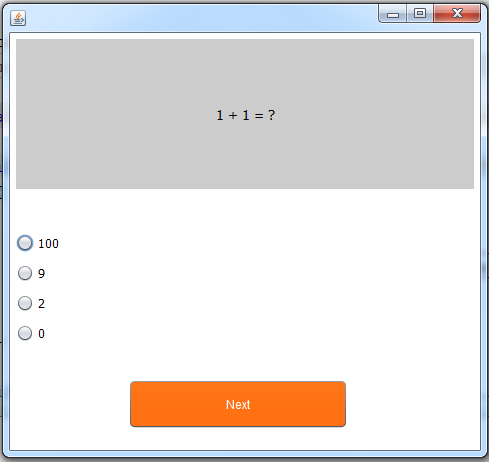
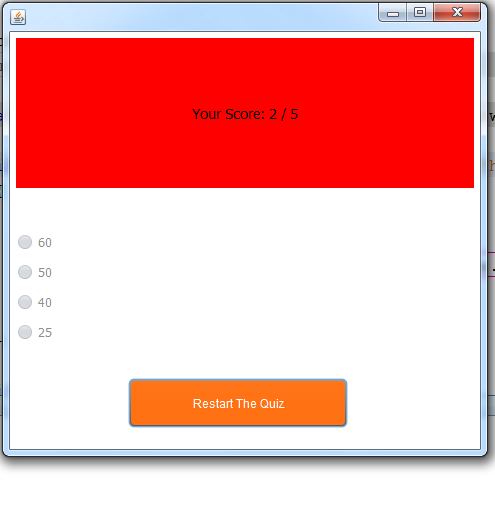
In this Java Tutorial we will see How to Make a Simple Quiz App Using  Jframe JPanels and JRadioButtons In Java NetBeans .


Project Source Code:


    // create an array of questions    
    String[] questions = {"1 + 1 = ?","3 - 3 = ?","5 + 5 = ?","10 X 9 = ?","100 - 50 = ?"};
    // create an array of options
    // the last item is the correct answer
    // we will check the selected answer from the user with the last item
    String[][] options = {{"100","9","2","0","2"},{"15","7","0","11","0"},{"20","10","50","5","10"},{"80","70","90","100","90"},{"60","50","40","25","50"}};

    // index to display the next question, correct to count the correct answers
    int index = 0, correct = 0;

    // button group to contain the radiobuttons
    ButtonGroup bg = new ButtonGroup();
    
   
public Quiz_Form() {
        initComponents();
        
// add the radiobuttons to the button group 
        bg.add(jRadioButton1_);
        bg.add(jRadioButton2_);
        bg.add(jRadioButton3_);
        bg.add(jRadioButton4_);
        
        jButton_Next_QActionPerformed(null);
    }


    public void getSelectedOption(JRadioButton rbtn)
    {
        // get the selected value from the radiobutton
        // increment the index
        // disable the radiobuttons
        // check if the user selected the right answer
        System.out.println(rbtn.getText());
        System.out.println(options[index][4]);

        if(rbtn.getText().equals(options[index][4]))
        {
            correct++;
        }
        index++;
        enableRbuttons(false);
    }


    // enable/ disable radiobuttons
    public void enableRbuttons(boolean yes_or_no)
    {
        jRadioButton1_.setEnabled(yes_or_no);
        jRadioButton2_.setEnabled(yes_or_no);
        jRadioButton3_.setEnabled(yes_or_no);
        jRadioButton4_.setEnabled(yes_or_no);
    }


    private void jButton_Next_QActionPerformed(java.awt.event.ActionEvent evt) {                                               
        
        if(jButton_Next_Q.getText().equals("Restart The Quiz"))
        {
            // restart the quiz
            jButton_Next_Q.setText("Next");
            jPanel_Q_Container.setBackground(new java.awt.Color(204, 204, 204));
            index = 0;
            correct = 0;
        }
        
        if(index == questions.length)
        {
            // display the user score
            Lbl_Question.setText("Your Score: " + correct + " / " + questions.length);
            if(correct >= (float) questions.length/2)
            {
               jPanel_Q_Container.setBackground(Color.green);
            }
            else{
                jPanel_Q_Container.setBackground(Color.red);
            }
            
            jButton_Next_Q.setText("Restart The Quiz");
        }
        
        else{
               // enable radio buttons
             enableRbuttons(true);

             // display the next question
             Lbl_Question.setText(questions[index]);
             jRadioButton1_.setText(options[index][0]);
             jRadioButton2_.setText(options[index][1]);
             jRadioButton3_.setText(options[index][2]);
             jRadioButton4_.setText(options[index][3]);
             
             if(index == questions.length-1){
                 jButton_Next_Q.setText("Finish and See The Result");
             }
            
        }
        
        // clear the selection
        bg.clearSelection(); 
        
    }                                              

    private void jRadioButton1_ActionPerformed(java.awt.event.ActionEvent evt) {                                               
        getSelectedOption(jRadioButton1_);
    }                                              

    private void jRadioButton2_ActionPerformed(java.awt.event.ActionEvent evt) {                                               
        getSelectedOption(jRadioButton2_);
    }                                              

    private void jRadioButton3_ActionPerformed(java.awt.event.ActionEvent evt) {                                               
        getSelectedOption(jRadioButton3_);
    }                                              

    private void jRadioButton4_ActionPerformed(java.awt.event.ActionEvent evt) {                                               
        getSelectedOption(jRadioButton4_);
    }                                              


////// OUTPUT : 


Java Quiz App 1

Java Quiz App 2

Java Quiz App 3


download the source code


More Java Projects: