Affichage des articles dont le libellé est FlatLaf. Afficher tous les articles

Java - Flat JTable Design

How to Make a JTable Look Flat And Modern In Java Netbeans

How to Make a JTable Look Flat In Java


In this Java Tutorial we will see How To Create a JFrame with a JTable featuring a flat design, custom cell rendering for alternating row colors and selected cell appearance, and a modern look and feel using the FlatLaf library. 
The cells in the JTable are set to be uneditable.

What We Are Gonna Use In This Project:

- Java Programming Language.
- NetBeans Editor.
FlatLaf library.


Project Source Code:


package new_tutorials;

import java.awt.Color;
import java.awt.Component;
import javax.swing.JFrame;
import javax.swing.JScrollPane;
import javax.swing.JTable;
import javax.swing.UIManager;
import javax.swing.UnsupportedLookAndFeelException;
import javax.swing.table.DefaultTableCellRenderer;
import javax.swing.table.DefaultTableModel;

/**
 *
 * @author 1BestCsharp
 */
public class FlatJTableFrame extends JFrame{

    private JTable table;
    
    public FlatJTableFrame(){
        
        initFrameUI();
        initTable();
        
    }
    
    // Method to initialize the main components of the JFrame
    private void initFrameUI(){
     
        setTitle("Flat JTable");
        setDefaultCloseOperation(JFrame.EXIT_ON_CLOSE);
        table = new JTable();
        JScrollPane scrollPane = new JScrollPane(table);
        getContentPane().add(scrollPane);
        pack();
        setLocationRelativeTo(null);
    }
    
    // Method to initialize the JTable with data and custom rendering
    private void initTable(){
        
        String[] columnNames = {"Name","Age","Job"};
        Object[][] data = {{"John Doe", 30, "Engineer"}, 
                           {"Jane Smith", 25, "Designer"}, 
                           {"Michael Johnson", 40, "Manager"},
                           {"John Doe", 30, "Engineer"}, 
                           {"Jane Smith", 25, "Designer"}, 
                           {"Michael Johnson", 40, "Manager"},
                           {"John Doe", 30, "Engineer"}, 
                           {"Jane Smith", 25, "Designer"}, 
                           {"Michael Johnson", 40, "Manager"},
                           {"John Doe", 30, "Engineer"}, 
                           {"Jane Smith", 25, "Designer"}, 
                           {"Michael Johnson", 40, "Manager"},
                           {"John Doe", 30, "Engineer"}, 
                           {"Jane Smith", 25, "Designer"}, 
                           {"Michael Johnson", 40, "Manager"},
                           {"John Doe", 30, "Engineer"}, 
                           {"Jane Smith", 25, "Designer"}, 
                           {"Michael Johnson", 40, "Manager"},
                           {"John Doe", 30, "Engineer"}, 
                           {"Jane Smith", 25, "Designer"}, 
                           {"Michael Johnson", 40, "Manager"},
                           {"John Doe", 30, "Engineer"}, 
                           {"Jane Smith", 25, "Designer"}, 
                           {"Michael Johnson", 40, "Manager"},{"John Doe", 30, "Engineer"}, 
                           {"Jane Smith", 25, "Designer"}, 
                           {"Michael Johnson", 40, "Manager"},
                           
                        };
        
        DefaultTableModel model = new DefaultTableModel(data, columnNames){
            // make the cells uneditable
            @Override
            public boolean isCellEditable(int row, int column){
                return false;
            }
        };
        
        table.setModel(model);
        
        // Set custom cell renderer for alternate row colors and selected cell appearance
        table.setDefaultRenderer(Object.class, new DefaultTableCellRenderer(){
        
            @Override
            public Component getTableCellRendererComponent(JTable table, Object value, boolean isSelected, boolean hasFocus, int row, int column){
            
                Component component = super.getTableCellRendererComponent(table, value, isSelected, hasFocus, row, column);
                
                if(isSelected){
                    // Set background and text color for selected cell
                    component.setBackground(Color.ORANGE);
                    component.setForeground(Color.WHITE);
                }
                else{
                    // Set background color based on alternating rows
                    component.setBackground(row%2 == 0 ? new Color(113,88,226) : new Color(58,227,255));
                    component.setForeground(Color.BLACK);
                }
                
                return component;
                
            }
            
        });
        
        
    }

    public static void main(String[] args) {
        try
        {
            UIManager.setLookAndFeel(new com.formdev.flatlaf.FlatDarculaLaf());
        }
        catch(UnsupportedLookAndFeelException ex){
            System.out.println(ex.getMessage()); 
        }
        
        FlatJTableFrame frame = new FlatJTableFrame();
        frame.setVisible(true);
    }
    
}


The Final Result:

Flat JTable Design In Java


Java - Light And Dark Mode Switcher

How to Create a Light Dark Mode Switcher with FlatLaf In Java Netbeans

Light And Dark Mode Switcher In Java


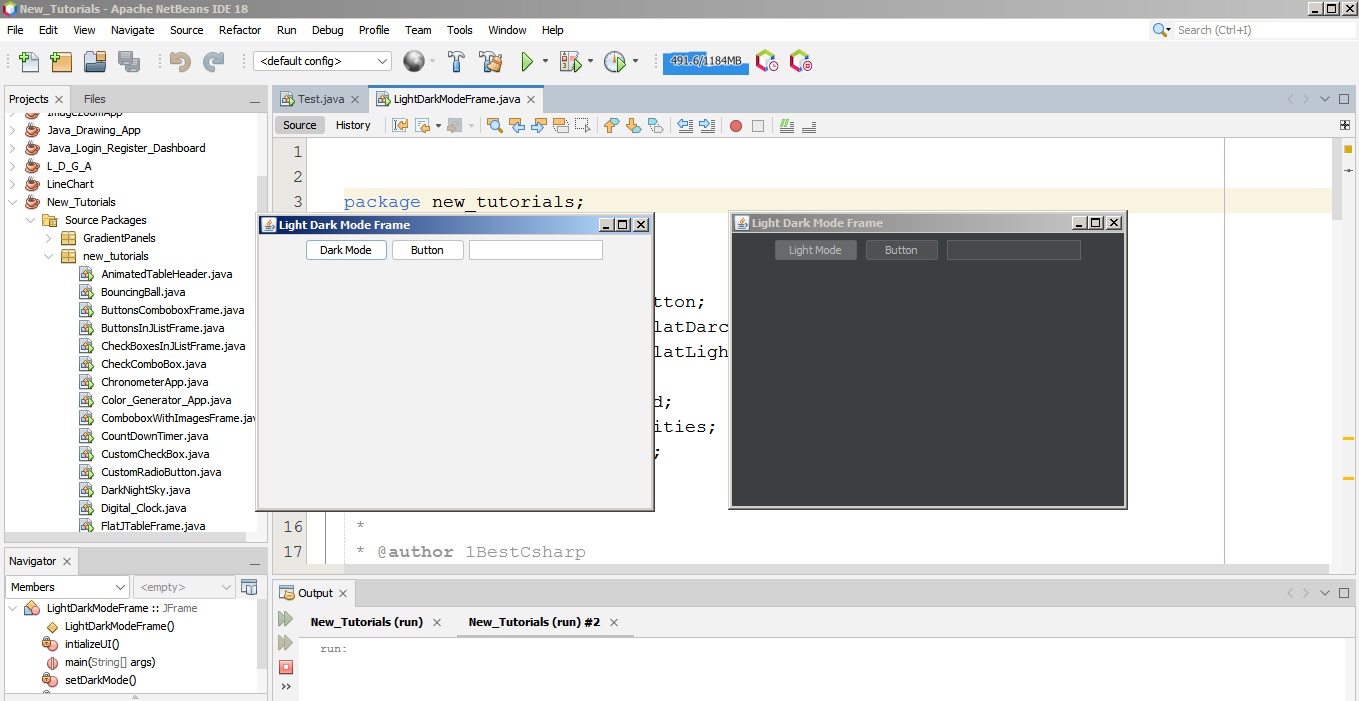
In this Java Tutorial we will see How To Create a JFrame with a toggle button for switching between light and dark modes. 
The application uses the FlatLaf library to provide a modern look and feel for Swing components.

What We Are Gonna Use In This Project:

- Java Programming Language.
- NetBeans Editor.
- FlatLaf Library.


Project Source Code:


package new_tutorials;

import javax.swing.JFrame;
import javax.swing.JPanel;
import javax.swing.JToggleButton;
import com.formdev.flatlaf.FlatDarculaLaf;
import com.formdev.flatlaf.FlatLightLaf;
import javax.swing.JButton;
import javax.swing.JTextField;
import javax.swing.SwingUtilities;
import javax.swing.UIManager;

/**
 *
 * @author 1BestCsharp
 * download flatlaf - https://search.maven.org/artifact/com.formdev/flatlaf/3.2.5/jar?eh=
 */
public class LightDarkModeFrame extends JFrame{

    private JToggleButton darkLightToggle;
    
    public LightDarkModeFrame(){
        setTitle("Light Dark Mode Frame");
        setDefaultCloseOperation(JFrame.EXIT_ON_CLOSE);
        setSize(400,300);
        setLocationRelativeTo(null);
        
        intializeUI();
    }
    
    private void intializeUI(){
        
        JPanel panel = new JPanel();
        darkLightToggle = new JToggleButton("Dark Mode");
        
        darkLightToggle.addItemListener((e) -> {
            if(darkLightToggle.isSelected()){
                setDarkMode();
            }
            else{ setLightMode(); }
        });
        
        panel.add(darkLightToggle);
        panel.add(new JButton("Button"));
        panel.add(new JTextField(15));
        add(panel);
        
        setLightMode();
        
        darkLightToggle.setSelected(false);
        
    }
    
    private void setDarkMode(){
        try{
            UIManager.setLookAndFeel(new FlatDarculaLaf());
            darkLightToggle.setText("Light Mode");
            SwingUtilities.updateComponentTreeUI(this);
        }
        catch(Exception ex){ System.out.println(ex.getMessage()); }
    }
    
        private void setLightMode(){
        try{
            UIManager.setLookAndFeel(new FlatLightLaf());
            darkLightToggle.setText("Dark Mode");
            SwingUtilities.updateComponentTreeUI(this);
        }
        catch(Exception ex){ System.out.println(ex.getMessage()); }
    }
        
    
    public static void main(String[] args) {
        LightDarkModeFrame frame = new LightDarkModeFrame();
        frame.setVisible(true);
    }
    
    
}


The Final Result:

toggle button for switching between light and dark modes in java