Affichage des articles dont le libellé est date. Afficher tous les articles

JavaScript Date - Add, Subtract and Finding the Difference

How to Create a Date Calculator Using JavaScript 


How to Create a Date Calculator Using JavaScript


In this Javascript tutorial, we will see how to create a dates calculator, where you can enter two dates, add or subtract a certain number of days from one of the dates, and calculate the difference in days between two dates.


Project Source Code:


<!DOCTYPE html>
<html>
<head>
<title>Date Difference Calculator</title>
<style>
body{ font-family: Arial, Helvetica, sans-serif; background-color: #555; }

form{ display: flex; flex-direction: column; max-width: 400px; margin: 0 auto;
padding: 20px; border-radius: 5px; background-color: #fff;
box-shadow: 0 2px 5px rgba(0, 0, 0, 0.2);
}
label{ margin-bottom: 5px; font-weight: bold; }

input[type="text"],
input[type="number"],
select{ padding: 10px; margin-bottom: 10px; border-radius: 5px;
border: 1px solid #ccc; background-color: #f2f2f2;
}

input[type="button"]{ padding: 10px 20px; border: none; border-radius: 5px;
background-color: #008cba; color: #fff; cursor: pointer;
margin-bottom: 5px; transition: all 0.3s ease;
}
input[type="button"]:hover{ background-color: #006f8b; }

#result{ max-width: 400px; margin: 20px auto; padding: 20px; border-radius: 5px;
background-color: #fff; box-shadow: 0 2px 5px rgba(0, 0, 0, 0.2);
}

</style>
</head>
<body>

<form id="date-form">
<label for="start-date">Start Date:</label>
<input type="text" id="start-date" placeholder="yyyy-mm-dd">
<br>
<label for="end-date">End Date:</label>
<input type="text" id="end-date" placeholder="yyyy-mm-dd">
<br>
<label for="days">Days:</label>
<input type="number" id="days" placeholder="Enter Number Of Days">
<br>
<input type="button" value="Add" id="add">
<input type="button" value="Substract" id="substract">
<input type="button" value="Calculate" id="calculate">
</form>
<div id="result"></div>

<script>

// Select the input elements we need to use
const startDateInput = document.getElementById("start-date");
const endDateInput = document.getElementById("end-date");
const daysInput = document.getElementById("days");
const resultLabel = document.getElementById("result");
const addButton = document.getElementById("add");
const substractButton = document.getElementById("substract");
const calculateButton = document.getElementById("calculate");
// Helper function to format the date in YYYY-MM-DD format
const formatDate = (date) => {
let d = new Date(date),
month = ''+(d.getMonth()+1),
day = ''+(d.getDate()+1),
year = ''+(d.getFullYear());
if(month.length < 2){
month = '0' + month;
}

if(day.length < 2){
day = '0' + day;
}

return [year, month, day].join('-');

}

// Add click event listeners to the buttons
addButton.addEventListener("click", () => {
// get the number of days from the input field and check if it's a valid number
let days = parseInt(daysInput.value);
if(!days){
resultLabel.innerHTML = "please enter a valid number of days";
return;
}
// get the start date from the input field, add the number of days, and update the input field
let startDate = new Date(startDateInput.value);
startDate.setDate(startDate.getDate() + days);
startDateInput.value = formatDate(startDate);
resultLabel.innerHTML = ""; // clear the error message

});


substractButton.addEventListener("click", () => {
// get the number of days from the input field and check if it's a valid number
let days = parseInt(daysInput.value);
if(!days){
resultLabel.innerHTML = "please enter a valid number of days";
return;
}
// get the start date from the input field, add the number of days, and update the input field
let startDate = new Date(startDateInput.value);
startDate.setDate(startDate.getDate() - days);
startDateInput.value = formatDate(startDate);
resultLabel.innerHTML = ""; // clear the error message

});


calculateButton.addEventListener("click", ()=>{

// get the start and end dates from the input fields
let start = new Date(startDateInput.value);
let end = new Date(endDateInput.value);

// check if the start date is before the end date, and display an error message if not
if(start > end){
resultLabel.innerHTML = "please enter a valid date range";
return;
}

// calculate the difference in days between the start and end dates
let difference = end-start;
let days = Math.round(difference / (1000*60*60*24));
resultLabel.innerHTML = `The difference between the two dates is ${days} days.`;

});


</script>


</body>
</html>


Code Explanation:

this JavaScript code, allows users to add or subtract days from a date, or calculate the difference in days between two dates.

This JavaScript code performs the following actions:

1 - The "Add" button, retrieves the number of days from the input field, checks its validity, and then updates the start date by adding the specified number of days. 
It also clears any prior error messages from the result area..

2 - The "Subtract" button, Similar to the "Add" button, but it subtracts the number of days from the start date.

3 - The "Calculate" button, retrieves start and end dates from input fields, checks for a valid date range, calculates the rounded difference in days between them, and then displays this difference in the result area.


OUTPUT:

JavaScript Date - Add, Subtract and Finding the Difference


Javascript Difference Between Two Dates

How To Get Days Difference Between 2 Date Using Javascript  

Difference Between 2 Date Using Javascript


In this JavaScript tutorial we will see how to get the number of days between two dates using Math.floor and the input type date in JS and Netbeans Editor .


Project Source Code:

    
<!DOCTYPE html>
<html>
    <head>
        <title>Javascript: Days Difference Between 2 Date </title>
        <meta charset="windows-1252">
        <meta name="viewport" content="width=device-width, initial-scale=1.0">
    </head>
    <body>
        
        <input type="date" id="startDate">
        <input type="date" id="endDate">
        <button onclick="dateDiff()" >Diff</button>
        
        <script>
            
            function dateDiff(){
                
                var date1 = new Date(document.getElementById("startDate").value),
                    date2 = new Date(document.getElementById("endDate").value);
                     // number of milliseconds in one day (24H)
             var diffResult = Math.floor((date2 - date1) / (1000 * 60 * 60 * 24));
             
             console.log(diffResult);
                
            }
            
        </script>
        
    </body>
</html>


OUTPUT:


2 date diff in js
Result : 365

VB.Net Difference Between Two Dates

How To Get Timespan Difference Between Two Datetime Using VB.Net


Difference Between 2 Dates In VB.Net


In this VB.NET Tutorial we will see How To Get The Difference Between 2 Dates In Days, Hours, Minutes, Seconds, Milliseconds On A Button Click Event In Visual Basic.Net  Programming Language And Visual  Studio Editor.


Project Source Code:


Public Class difference_between_two_dates

    Private Sub Button1_Click(sender As Object, e As EventArgs) Handles Button1.Click

        ' get the first date
        Dim date1 As DateTime = DateTimePicker1.Value

        ' get the second date
        Dim date2 As DateTime = DateTimePicker2.Value

        Dim dateDiff As TimeSpan = date2 - date1

        ' difference in days
        TextBoxDays.Text = dateDiff.TotalDays.ToString()

        ' difference in hours
        TextBoxHours.Text = dateDiff.TotalHours.ToString()

        ' difference in minutes
        TextBoxMinutes.Text = dateDiff.TotalMinutes.ToString()

        ' difference in seconds
        TextBoxSeconds.Text = dateDiff.TotalSeconds.ToString()

        ' difference in milliseconds
        TextBoxMilliseconds.Text = dateDiff.TotalMilliseconds.ToString()


    End Sub
End Class


OutPut:

2 datetime difference in vb.net


VB.Net DateTimePicker

How To Use a DateTimePicker Control In VB.Net


VB.Net Using DateTimePicker


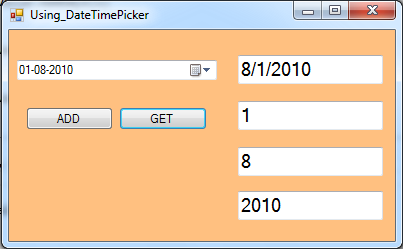
In this VB.NET Tutorial we will see How To Use DateTimePicker And Customize the date, add days, months, years to the date, get the full date and display it into textbox or get only the days, the months or only the years Using Visual Basic.Net  Programming Language And Visual  Studio Editor.


Project Source Code:


Public Class Using_DateTimePicker

    Private Sub Using_DateTimePicker_Load(sender As Object, e As EventArgs) Handles MyBase.Load

        ' cutom date format
        DateTimePicker1.Format = DateTimePickerFormat.Custom
        DateTimePicker1.CustomFormat = "dd-MM-yyyy"

        ' set date
        DateTimePicker1.Value = New DateTime(2010, 8, 1)

        ' set min date
        DateTimePicker1.MinDate = New DateTime(1990, 1, 1)

        ' set max date
        DateTimePicker1.MaxDate = New DateTime(2200, 1, 1)

    End Sub

    ' button add
    Private Sub ButtonADD_Click(sender As Object, e As EventArgs) Handles ButtonADD.Click

        ' add days to the datetimepicker date
        DateTimePicker1.Value = DateTimePicker1.Value.AddDays(1)

        ' add Months to the datetimepicker date
        DateTimePicker1.Value = DateTimePicker1.Value.AddMonths(1)

        ' add Years to the datetimepicker date
        DateTimePicker1.Value = DateTimePicker1.Value.AddYears(1)

    End Sub

    ' button get
    Private Sub ButtonGet_Click(sender As Object, e As EventArgs) Handles ButtonGet.Click

        ' get full date
        TextBoxFullDate.Text = DateTimePicker1.Value

        ' get day
        TextBoxDay.Text = DateTimePicker1.Value.Day

        ' get month
        TextBoxMonth.Text = DateTimePicker1.Value.Month

        ' get year
        TextBoxYear.Text = DateTimePicker1.Value.Year

    End Sub
End Class


OutPut:

Use DateTimePicker In Visual Basic .Net


Java Two Dates Difference In Days

How To Get Days Difference Between 2 Dates Using Java NetBeans

Days Difference Between Two Dates In Java


In this Java Tutorial we will see How To Get The Number Of Days Diffrence Between Two Date Using Calendar On Button Click Event In Java NetBeans .


Project Source Code:

            
private void jButtonDaysDiffActionPerformed(java.awt.event.ActionEvent evt) {                                                
        
        Calendar c1 = new GregorianCalendar(2000,Calendar.JULY,25);
        Calendar c2 = new GregorianCalendar(2007,Calendar.DECEMBER,31);
        
        // 1000 x 60 X 60 X 24 = MS per Day
        
        System.out.println("Days Diff = " + (c2.getTimeInMillis() - c1.getTimeInMillis()) / (1000*60*60*24));
        
    }


OutPut: 
Days Diff = 2715


VB.Net Show Date From MySQL To DateTimePicker

How To Display Date From MySQL DataBase To DateTimePicker In VbNet

VB.Net Display Date From MySQL Database To DateTimePicker

In This VB.Net Tutorial  We Will See How To Get Date From MySQL DataBase And Set It Into A DateTimePicker Using MySqlDataReader And Custom The Date Format Using  CustomFormat In Visual Basic.Net Programming Language And Visual Studio Editor.


Project Source Code:

Imports MySql.Data.MySqlClient

Public Class Display_Date_From_MySQL_To_DateTimePicker

    Private Sub Display_Date_From_MySQL_To_DateTimePicker_Load(sender As Object, e As EventArgs) Handles MyBase.Load

        Dim connection As New MySqlConnection("datasource=localhost;port=3306;username=root;password=")
        Dim command As New MySqlCommand()

        command.CommandText = "SELECT `Id`, `FullName`, `Address`, `BirthDate` FROM s_t_d.student WHERE `Id` = 1"
        command.Connection = connection

        Dim reader As MySqlDataReader

        connection.Open()

        reader = command.ExecuteReader

        reader.Read()

        'DateTimePicker1.CustomFormat = "yyyy-MM-dd"
        DateTimePicker1.Value = reader(3)

        connection.Close()

    End Sub
End Class
      
///////////////OUTPUT:

VB.Net Display Date From MySQL Database To DateTimePicker