Affichage des articles dont le libellé est Glass Bridge Game. Afficher tous les articles

C# - Create Glass Bridge Game In C#

How To Create Glass Bridge Game From Squid Game Using C#

Glass Bridge Game In C#


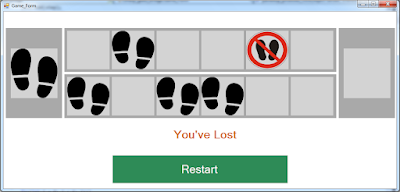
in this c# form tutorial we will see how to make The Glass Stepping Stones Game or the Glass Bridge Game From Squid Game using panels and pictureboxes in csharp programming language.

game rules:
- the player have to hop across a bridge of glasses with some glasses that breack easily.

tools:
- c# programming language.
- microsoft visual studio express 2013.
- pixabay.com (images).

Watch This Full Demo


- The Project Source Code


using System;
using System.Collections;
using System.Collections.Generic;
using System.ComponentModel;
using System.Data;
using System.Drawing;
using System.Linq;
using System.Text;
using System.Threading.Tasks;
using System.Windows.Forms;

namespace csharp_glass_bridge
{
    public partial class Game_Form : Form
    {
        public Game_Form()
        {
            InitializeComponent();
        }

        // images
        Bitmap step = Properties.Resources.step;
        Bitmap nostep = Properties.Resources.nostep;

        // random to get random images
        Random random = new Random();
        Bitmap randomImage;

        // arraylist of pictureboxes
        PictureBox[,] picBoxes;
        // populate this array with random images
        // 6 - number of rows
        // 2 - number of columns
        Bitmap[,] imagesOrder = new Bitmap[6, 2];
        ArrayList list = new ArrayList();
        int counter = 0;
        bool won = true;

        private void Game_Form_Load(object sender, EventArgs e)
        {
            pictureBoxStart.Image = step;

            // populate the picBoxes with pictureboxes
            picBoxes = new[,] {{ pictureBox_1_1, pictureBox_1_2 },{ pictureBox_2_1, pictureBox_2_2 },
                               { pictureBox_3_1, pictureBox_3_2 },{ pictureBox_4_1, pictureBox_4_2 },
                               { pictureBox_5_1, pictureBox_5_2 },{ pictureBox_6_1, pictureBox_6_2 }
            };

            // add images to the list
            list.Add(step);
            list.Add(nostep);

            createRandomImages();

            AddEventToAllPictureboxes(null, null);

            enablePicBox(counter);

        }

        // button to restart the game
        private void buttonRestart_Click(object sender, EventArgs e)
        {
            createRandomImages();
            won = true;
            counter = 0;
            label_message.Text = "";
            enablePicBox(counter);
            pictureBoxFinish.Image = null;
            foreach(PictureBox pbox in picBoxes)
            {
                pbox.Image = null;
            }
        }


        // create a function to get random images
        public void createRandomImages()
        {
            for(int i = 0; i < 6; i++)
            {
                randomImage = (Bitmap)list[random.Next(list.Count)];
                imagesOrder[i, 0] = randomImage;

                if(randomImage.Equals(step))
                {
                    imagesOrder[i, 1] = nostep;
                }
                else
                {
                    imagesOrder[i, 1] = step;
                }
            }
        }


        // create an event click to all the pictureboxes in panel top
        public void paneltop_picBoxes_click(object sender, EventArgs e)
        {
            PictureBox pbox = (PictureBox)sender;
            if(pbox.Enabled)
            {
                pbox.Image = imagesOrder[counter, 1];

                // disable picturebox
                pbox.Enabled = false;
                picBoxes[counter, 0].Enabled = false;

                if (imagesOrder[counter, 1].Equals(nostep))
                {
                    won = false;
                }
                if (counter == 5 && won == true)
                {
                    pictureBoxFinish.Image = step;
                    label_message.Text = "You've Won";
                }
                else if (won == false)
                {
                   // MessageBox.Show("You've Lost");
                    label_message.Text = "You've Lost";
                }

                counter++;
                enablePicBox(counter);
            }
            
        }


        // create an event click to all the pictureboxes in panel bottom
        public void panelbottom_picBoxes_click(object sender, EventArgs e)
        {
            PictureBox pbox = (PictureBox)sender;
            if (pbox.Enabled)
            {
                pbox.Image = imagesOrder[counter, 0];

                // disable picturebox
                pbox.Enabled = false;
                picBoxes[counter, 1].Enabled = false;

                if (imagesOrder[counter, 0].Equals(nostep))
                {
                    won = false;
                }
                if (counter == 5 && won == true)
                {
                    pictureBoxFinish.Image = step;
                    label_message.Text = "You've Won";
                }
                else if (won == false)
                {
                    //MessageBox.Show("You've Lost");
                    label_message.Text = "You've Lost";
                }

                counter++;
                enablePicBox(counter);
            }
            
        }

        // add event to all the pictureboxes
        public void AddEventToAllPictureboxes(object sender, EventArgs e)
        {
            foreach(Control c in panel_top.Controls)
            {
                if(c is PictureBox)
                {
                    c.Click += new System.EventHandler(paneltop_picBoxes_click);
                }
            }

            foreach (Control c in panel_bottom.Controls)
            {
                if (c is PictureBox)
                {
                    c.Click += new System.EventHandler(panelbottom_picBoxes_click);
                }
            }
        }


        // create a function to enable picturebox
        public void enablePicBox(int index)
        {
            if(index <= 5)
            {
                picBoxes[index, 0].Enabled = true;
                picBoxes[index, 1].Enabled = true;
            }
            
        }
    }
}


OUTPUT:
Create Glass Bridge Game In C#

Glass Bridge Game In C#

Glass Stepping Stones Game In C#

Glass Stepping Stones Game Source Code In C#


Javascript - Create Glass Bridge Game

How To Make The Glass Bridge Game From Squid Game In Javascript Using VS Code


In this JavaScript Tutorial we will see How to Make The Glass Stepping Stones Game or the glass bridge game From Squid Game In JavaScript and Visual Studio Code .

The Game Rules:
the player have to hop across a bridge of glasses with some glasses that breack easily.


Project Source Code:


<!DOCTYPE HTML>

<head>
<style>
.container{display: flex; flex-direction: row; flex-wrap: wrap;
justify-content: center; align-items: center}
.content, .start, .finish, .pic, .panels, .top, .bottom{
border: 1px solid lightslategray; box-sizing: border-box}
.start, .finish{width:120px; height: 220px; margin: 5px;
display: flex; flex-direction: row;
flex-wrap: wrap; justify-content: center; align-items: center}
.start, .finish, .panels{float: left;}
.panels{width: 850px; height: 220px; margin: 5px}
.top, .bottom{height: 110px; background-color: #2E2C28;display: flex;
flex-direction: row;
flex-wrap: wrap; justify-content: center; align-items: center}
.glass{width: 110px;height: 100px;border: 1px solid #fff;
background-color: #FFDF2B;
margin: 2px; background-size: 100% 100%;}
.glass:hover{background-color: darkgoldenrod}
#pic-start, #pic-finish{background-color: #FFDF2B; width: 100px; height: 100px;
background-size: 100% 100%;}
#pic-start{background-image: url('C://Users//1BestCsharp//Downloads//steps.png')}
#play-again{color: #fff; background-color: green; width:100%;
padding: 20px; border: 1px solid #fff}


</style>
</head>

<body>

<div class="container">

<div class="content">
<div class="start">
<div class="pic" id="pic-start">

</div>
</div>
<div class="panels">
<div class="top">
<button onclick="stepInThis(this)" class="glass g1"
disabled="disabled"></button>
<button onclick="stepInThis(this)" class="glass g1"
disabled="disabled"></button>
<button onclick="stepInThis(this)" class="glass g1"
disabled="disabled"></button>
<button onclick="stepInThis(this)" class="glass g1"
disabled="disabled"></button>
<button onclick="stepInThis(this)" class="glass g1"
disabled="disabled"></button>
<button onclick="stepInThis(this)" class="glass g1"
disabled="disabled"></button>
<button onclick="stepInThis(this)" class="glass g1"
disabled="disabled"></button>
</div>
<div class="bottom">
<button onclick="stepInThis(this)" class="glass g2"
disabled="disabled"></button>
<button onclick="stepInThis(this)" class="glass g2"
disabled="disabled"></button>
<button onclick="stepInThis(this)" class="glass g2"
disabled="disabled"></button>
<button onclick="stepInThis(this)" class="glass g2"
disabled="disabled"></button>
<button onclick="stepInThis(this)" class="glass g2"
disabled="disabled"></button>
<button onclick="stepInThis(this)" class="glass g2"
disabled="disabled"></button>
<button onclick="stepInThis(this)" class="glass g2"
disabled="disabled"></button>
</div>
</div>
<div class="finish">
<div class="pic" id="pic-finish">
</div>
</div>

<div>
<button id="play-again" onclick="playagain()">Play Again</button>
</div>

</div>

</div>

<script>
glasses = document.getElementsByClassName('glass');
g1 = document.getElementsByClassName('g1');
g2 = document.getElementsByClassName('g2');
div_finish = document.getElementById('pic-finish');
step = "C://Users//1BestCsharp//Downloads//steps.png";
nostep = "C://Users//1BestCsharp//Downloads//nostep.png";
list = [step, nostep];
imagesOrder = [[]];
counter = 0;
won = true;
index = 0;


// create a function to enable buttons
function enableButton()
{
if(counter <= g1.length - 1)
{
g1[counter].disabled = false;
g2[counter].disabled = false;
}
}

// create a function to populate imagesOrder with random images
function getRandomImages()
{
for(let i = 0; i < g1.length; i++)
{
imagesOrder[i] = [];
// get random image
random_image = list[Math.floor(Math.random()*list.length)];

if(random_image == step)
{
imagesOrder[i][0] = random_image;
imagesOrder[i][1] = nostep;
}
else
{
imagesOrder[i][0] = random_image;
imagesOrder[i][1] = step;
}

console.log(imagesOrder[i][1]);
console.log(imagesOrder[i][0]);
console.log("-------------------");

}
}

function stepInThis(pic)
{
if(pic.classList.contains('g1'))
{
if(pic.disabled == false)
{
if(imagesOrder[counter][0] == nostep)
{
won = false;
}
if(counter == imagesOrder.length-1 && won == true)
{
div_finish.setAttribute("style",
"background-image: url('"+imagesOrder[counter][0]+"');");
alert("You've Won");
}
else if(won == false)
{
alert("You've Lost");
}

pic.setAttribute("style",
"background-image: url('"+imagesOrder[counter][0]+"');");
pic.disabled = true;
g2[counter].disabled = true;
counter++;
enableButton();
}
}
else if(pic.classList.contains('g2'))
{
if(pic.disabled == false)
{
if(imagesOrder[counter][1] == nostep)
{
won = false;
}
if(counter == imagesOrder.length-1 && won == true)
{
div_finish.setAttribute("style",
"background-image: url('"+imagesOrder[counter][1]+"');");
alert("You've Won");
}
else if(won == false)
{
alert("You've Lost");
}

pic.setAttribute("style",
"background-image: url('"+imagesOrder[counter][1]+"');");
pic.disabled = true;
g1[counter].disabled = true;
counter++;
enableButton();
}
}
}


// create a function to play again
function playagain()
{
won = true;
for(let i = 0; i < g1.length; i++)
{
g1[i].setAttribute("style","background-image: url();");
g2[i].setAttribute("style","background-image: url();");
g1[i].disabled = true;
g2[i].disabled = true;
}

counter = 0;
enableButton();
getRandomImages();
}


getRandomImages();
enableButton();


</script>

</body>

</html>


////// OUTPUT : 


download the source code


VB.NET - Create Glass Bridge Game

How To Make The Glass Bridge Game From Squid Game In Visual Basic .Net

VB.NET Glass Bridge Game


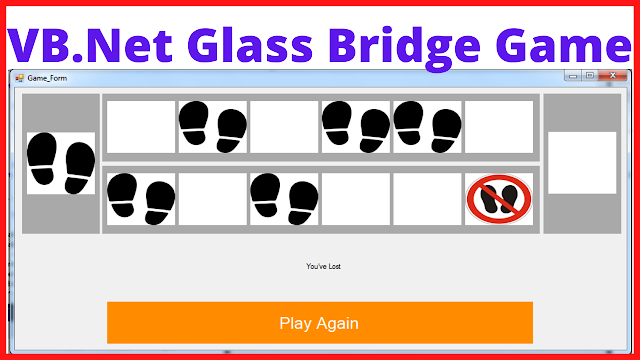
In this VB.NET Tutorial we will see How To Make The Glass Stepping Stones Game or the glass bridge game From Squid Game Using Panels and PictureBoxes In Visual Basic.Net   Programming Language And Visual  Studio Editor.

The Game Rules:
the player have to hop across a bridge of glasses with some glasses that breack easily.


Project Source Code:


Public Class Game_Form

    Dim footstep As Bitmap = My.Resources.footstep
    Dim nostep As Bitmap = My.Resources.nostep
    Dim random As Random = New Random()
    Dim randomImage As Bitmap
    Dim picBoxes As PictureBox(,)
    Dim imagesOrder As Bitmap(,) = New Bitmap(5, 1) {}
    Dim list As ArrayList = New ArrayList()
    Dim counter As Integer = 0
    Dim won As Boolean = True

    Private Sub Game_Form_Load(sender As Object, e As EventArgs) Handles MyBase.Load

        pictureBoxStart.Image = footstep

        ' array of picturboxes
        picBoxes = {
        {pictureBox_1_1, pictureBox_1_2},
        {pictureBox_2_1, pictureBox_2_2},
        {pictureBox_3_1, pictureBox_3_2},
        {pictureBox_4_1, pictureBox_4_2},
        {pictureBox_5_1, pictureBox_5_2},
        {pictureBox_6_1, pictureBox_6_2}}

        ' add images to the list
        list.Add(footstep)
        list.Add(nostep)

        ' create random images
        createRandomImages()

        ' add event to the pictureboxes
        AddEventToAllPictureboxes(Nothing, Nothing)

        ' enable pictureBoxes
        enablePicBox(counter)

    End Sub

    ' populate the imagesOrder with images in a random order 
    Public Sub createRandomImages()

        'RichTextBox1.Text = ""

        For i As Integer = 0 To 6 - 1
            randomImage = CType(list(random.[Next](list.Count)), Bitmap)
            imagesOrder(i, 0) = randomImage

            If randomImage.Equals(footstep) Then
                imagesOrder(i, 1) = nostep

                'RichTextBox1.Text = RichTextBox1.Text + "Footstep - "
                'RichTextBox1.Text = RichTextBox1.Text + "Nostep"
                'RichTextBox1.Text = RichTextBox1.Text + Environment.NewLine

            Else
                imagesOrder(i, 1) = footstep
                'RichTextBox1.Text = RichTextBox1.Text + "Nostep - "
                'RichTextBox1.Text = RichTextBox1.Text + "Footstep"
                'RichTextBox1.Text = RichTextBox1.Text + Environment.NewLine
            End If
        Next
    End Sub

    ' create an event for the pictureboxes in the top panel
    Public Sub paneltop_picBoxes_click(ByVal sender As Object, ByVal e As EventArgs)
        Dim pbox As PictureBox = CType(sender, PictureBox)

        If pbox.Enabled Then
            pbox.Image = imagesOrder(counter, 1)
            pbox.Enabled = False
            picBoxes(counter, 0).Enabled = False

            If imagesOrder(counter, 1).Equals(nostep) Then
                won = False
            End If

            If counter = 5 AndAlso won = True Then
                pictureBoxFinish.Image = footstep
                label_message.Text = "You've Won"
            ElseIf won = False Then
                label_message.Text = "You've Lost"
            End If

            counter += 1
            enablePicBox(counter)
        End If
    End Sub

    ' create an event for the pictureboxes in the bottom panel
    Public Sub panelbottom_picBoxes_click(ByVal sender As Object, ByVal e As EventArgs)
        Dim pbox As PictureBox = CType(sender, PictureBox)

        If pbox.Enabled Then
            pbox.Image = imagesOrder(counter, 0)
            pbox.Enabled = False
            picBoxes(counter, 1).Enabled = False

            If imagesOrder(counter, 0).Equals(nostep) Then
                won = False
            End If

            If counter = 5 AndAlso won = True Then
                pictureBoxFinish.Image = footstep
                label_message.Text = "You've Won"
            ElseIf won = False Then
                label_message.Text = "You've Lost"
            End If

            counter += 1
            enablePicBox(counter)
        End If
    End Sub

    ' add event to all pictureboxes
    Public Sub AddEventToAllPictureboxes(ByVal sender As Object, ByVal e As EventArgs)
        For Each c As Control In panel_top.Controls

            If TypeOf c Is PictureBox Then
                AddHandler c.Click, AddressOf paneltop_picBoxes_click
            End If
        Next

        For Each c As Control In panel_bottom.Controls

            If TypeOf c Is PictureBox Then
                AddHandler c.Click, AddressOf panelbottom_picBoxes_click
            End If
        Next
    End Sub

    Public Sub enablePicBox(ByVal index As Integer)
        If index <= 5 Then
            picBoxes(index, 0).Enabled = True
            picBoxes(index, 1).Enabled = True
        End If
    End Sub


    Public Sub disableAllPicBox()

        For Each c As Control In panel_top.Controls

            If TypeOf c Is PictureBox Then

                c.Enabled = False

            End If
        Next

        For Each c As Control In panel_bottom.Controls

            If TypeOf c Is PictureBox Then

                c.Enabled = False

            End If
        Next

    End Sub


    Private Sub buttonRestart_Click(sender As Object, e As EventArgs) Handles buttonRestart.Click

        createRandomImages()
        disableAllPicBox()
        won = True
        counter = 0
        label_message.Text = ""
        enablePicBox(counter)
        pictureBoxFinish.Image = Nothing

        For Each pbox As PictureBox In picBoxes
            pbox.Image = Nothing
        Next

    End Sub
End Class


OutPut:

Glass Bridge Game In VB.Net

glass stepping stones game in vb.net

squid game - glass stepping stones game In vb.net

glass bridge game from squid game using vb.net


if you want the source code click on the download button below