Affichage des articles dont le libellé est vb.net dataGridView. Afficher tous les articles

VB.Net Import Txt File Text To DataGridview

How To Populate DataGridview From a Text File Data In VB.Net

display txt file text to a datagridview using vb.net


In this VB.NET Tutorial we will see How To Get Records From .txt File And Display The Values Into DataGridView Rows On Button Click Event Using Visual Basic.Net  Programming Language And Visual  Studio Editor.


Project Source Code:


Imports System.IO

Public Class TXT_TO_DGV

    Dim table As New DataTable()
    Private Sub TXT_TO_DGV_Load(sender As Object, e As EventArgs) Handles MyBase.Load

        ' add columns to datatable
        table.Columns.Add("Id", Type.GetType("System.Int32"))
        table.Columns.Add("First Name", Type.GetType("System.String"))
        table.Columns.Add("Last Name", Type.GetType("System.String"))
        table.Columns.Add("Age", Type.GetType("System.Int32"))

        ' set the datatable as datasource
        DataGridView1.DataSource = table

    End Sub

    ' button import
    Private Sub ButtonImport_Click(sender As Object, e As EventArgs) Handles ButtonImport.Click

        Dim lines() As String
        Dim vals() As String
      
        ' get lines from the text file
        lines = File.ReadAllLines("C:\Users\1BestCsharp\Desktop\table.txt")

        For i As Integer = 0 To lines.Length - 1 Step +1  ' lines

            vals = lines(i).ToString().Split("|")
            Dim row(vals.Length - 1) As String

            For j As Integer = 0 To vals.Length - 1 Step +1  ' columns

                row(j) = vals(j).Trim()

            Next j

            table.Rows.Add(row)

        Next i


    End Sub
End Class


OutPut:

Import Text File Text To DataGridview Using VB.Net


VB.Net Add Row To Datagridview From Another Form

How To Insert Rows To DataGridView From Another Form In Visual Basic.Net 

insert rows to datagridview from another form using VB.net

In This VB.Net Tutorial  We Will See How To Add Rows To DataGridView From TextBoxes On A Different Form Using Visual Basic.Net Programming Language And Visual Studio Editor.

and in this example we will create 2 forms:
1 - form_1 with a datagridview and a Button
2 - form_2with 3 textboxes and a button

when we click in form_1 button "open a new window" the second form will show up , you need to fill up the textboxes and click the 'add' button

- To Learn More Watch The Video Tutorial Below. 


Project Source Code:

' Form DataGridView
Public Class FormGRID

    ' open a new form to add the data
    Private Sub ButtonOpen_Click(sender As Object, e As EventArgs) Handles ButtonOpen.Click

        Dim fdata As New FormDATA()
        fdata.Show()


    End Sub

End Class


' Form TextBoxes
Public Class FormDATA

    ' button add data
    Private Sub ButtonAdd_Click(sender As Object, e As EventArgs) Handles ButtonAdd.Click


        ' add a new row with our data to the datagridview
        FormGRID.DataGridView1.Rows.Add(TextBox1.Text, TextBox2.Text, TextBox3.Text)


    End Sub

End Class
   

Note: make sure to set the datagridview to static (better if you watch th full video)
   
///////////////OUTPUT:

This Is The End Result


insert data to DataGridView from another form in vb


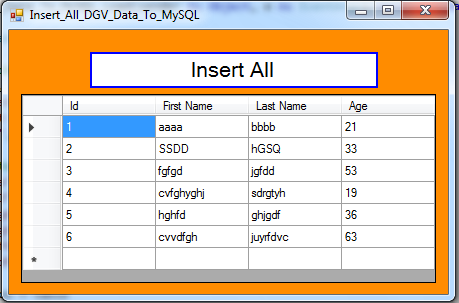
VB.Net Insert All DataGridView Data In MySQL

How To Add All DataGridView Values Into MySQL Database Using VbNet

VB.Net Insert All DataGridView Rows In Database

In This VB.Net Tutorial  We Will See How To Populate A Datagridview From Datatable And Add All Datagridview Row's Records In MySQL Database Using For Loop And Mysqlcommand with Parameters In Visual Basic.Net  Programming Language And Visual Studio Editor.


Project Source Code:

Imports MySql.Data.MySqlClient

Public Class Insert_All_DGV_Data_To_MySQL

    Dim connection As New MySqlConnection("datasource=localhost;port=3306;username=root;password=;database=s_t_d")

    Private Sub Insert_All_DGV_Data_To_MySQL_Load(sender As Object, e As EventArgs) Handles MyBase.Load

        ' populate datagridview from datatable 
        Dim table As New DataTable("Table")

        ' Add columns to your datatable 
        table.Columns.Add("Id", Type.GetType("System.Int32"))
        table.Columns.Add("First Name", Type.GetType("System.String"))
        table.Columns.Add("Last Name", Type.GetType("System.String"))
        table.Columns.Add("Age", Type.GetType("System.Int32"))

        ' Add rows to the datatable 
        table.Rows.Add(1, "aaaa", "bbbb", 21)
        table.Rows.Add(2, "SSDD", "hGSQ", 33)
        table.Rows.Add(3, "fgfgd", "jgfdd", 53)
        table.Rows.Add(4, "cvfghyghj", "sdrgtyh", 19)
        table.Rows.Add(5, "hghfd", "ghjgdf", 36)
        table.Rows.Add(6, "cvvdfgh", "juyrfdvc", 63)

        DataGridView1.DataSource = table

    End Sub

    Private Sub ButtonInsert_Click(sender As Object, e As EventArgs) Handles ButtonInsert.Click

        Dim cmd As MySqlCommand

        connection.Open()

        For i As Integer = 0 To DataGridView1.Rows.Count - 2 Step +1

            cmd = New MySqlCommand("INSERT INTO `dgv_data`(`id`, `first_name`, `last_name`, `age`) VALUES (@ID, @FN, @LN, @AGE)", connection)

            cmd.Parameters.Add("@ID", MySqlDbType.Int64).Value = DataGridView1.Rows(i).Cells(0).Value.ToString()
            cmd.Parameters.Add("@FN", MySqlDbType.VarChar).Value = DataGridView1.Rows(i).Cells(1).Value.ToString()
            cmd.Parameters.Add("@LN", MySqlDbType.VarChar).Value = DataGridView1.Rows(i).Cells(2).Value.ToString()
            cmd.Parameters.Add("@AGE", MySqlDbType.Int64).Value = DataGridView1.Rows(i).Cells(3).Value.ToString()

            cmd.ExecuteNonQuery()

        Next

        connection.Close()

        MessageBox.Show("All Data Inserted")

    End Sub
End Class
      

///////////////OUTPUT:

VB.Net Insert All DataGridView Records In Database


VB.Net - Move DataGridView Row Up And Down

How To Move Selected Datagridview Row Up N Down In Visual Basic.Net 

vb.net move datagridview row up and down


In This VB.Net Tutorial  We Will See How To Move Selected Datagridview Row Up Or Down On Button Click, In Visual Basic.Net Programming Language And Visual Studio Editor.


Project Source Code:


Public Class datagridview_row_up_down

    Dim table As New DataTable("table")
    ' selected row index 
    Dim rowIndex As Integer

    Private Sub datagridview_row_up_down_Load(sender As Object, e As EventArgs) Handles MyBase.Load

        ' populate dgv from dataTable

        ' add columns to dataTable
        table.Columns.Add("Id", Type.GetType("System.Int32"))
        table.Columns.Add("First Name", Type.GetType("System.String"))
        table.Columns.Add("Last Name", Type.GetType("System.String"))
        table.Columns.Add("Age", Type.GetType("System.Int32"))

        ' add rows to dataTable
        table.Rows.Add(1, "AA", "AA", 21)
        table.Rows.Add(2, "BB", "BB", 33)
        table.Rows.Add(3, "CC", "CC", 53)
        table.Rows.Add(4, "DD", "DD", 19)
        table.Rows.Add(5, "EE", "EE", 36)
        table.Rows.Add(6, "FF", "FF", 63)
        table.Rows.Add(7, "HH", "HH", 70)
        table.Rows.Add(8, "KK", "KK", 80)
        table.Rows.Add(9, "GG", "GG", 90)
        table.Rows.Add(10, "MM", "MM", 100)

        DataGridView1.DataSource = table

    End Sub

    Private Sub ButtonUP_Click(sender As Object, e As EventArgs) Handles ButtonUP.Click

        ' get the index of selected row
        rowIndex = DataGridView1.SelectedCells(0).OwningRow.Index
        'create a new row
        Dim row As DataRow
        row = table.NewRow()

        ' add data to the row 
        row(0) = Integer.Parse(DataGridView1.Rows(rowIndex).Cells(0).Value.ToString())
        row(1) = DataGridView1.Rows(rowIndex).Cells(1).Value.ToString()
        row(2) = DataGridView1.Rows(rowIndex).Cells(2).Value.ToString()
        row(3) = Integer.Parse(DataGridView1.Rows(rowIndex).Cells(3).Value.ToString())

        If rowIndex > 0 Then
            ' remove the selected row
            table.Rows.RemoveAt(rowIndex)

            ' insert the new row at a new position
            table.Rows.InsertAt(row, rowIndex - 1)
            DataGridView1.ClearSelection()

            DataGridView1.Rows(rowIndex - 1).Selected = True

        End If


    End Sub

    Private Sub ButtonDOWN_Click(sender As Object, e As EventArgs) Handles ButtonDOWN.Click

        rowIndex = DataGridView1.SelectedCells(0).OwningRow.Index
        Dim row As DataRow
        row = table.NewRow()

        row(0) = Integer.Parse(DataGridView1.Rows(rowIndex).Cells(0).Value.ToString())
        row(1) = DataGridView1.Rows(rowIndex).Cells(1).Value.ToString()
        row(2) = DataGridView1.Rows(rowIndex).Cells(2).Value.ToString()
        row(3) = Integer.Parse(DataGridView1.Rows(rowIndex).Cells(3).Value.ToString())

        If rowIndex < DataGridView1.Rows.Count - 2 Then
            table.Rows.RemoveAt(rowIndex)

            table.Rows.InsertAt(row, rowIndex + 1)
            DataGridView1.ClearSelection()

            DataGridView1.Rows(rowIndex + 1).Selected = True

        End If

    End Sub
End Class

// OUTPUT :

move datagridview row up N down


VB.Net Get Database Images Into DataGridView

VB.NET - How To Display Images From SQL Server To Datagridview Using Visual Basic.Net


In This VB.NET Tutorial We Will See How To Retrieve And Show Image From Microsoft SQL DataBase Into Datagridview Using Visual Basic .NET Programming Language.


Project Source Code:

Imports System.Data.SqlClient

Public Class VBNET_Get_Images_From_SQL_To_DataGridView

    Dim connection As New SqlConnection("Server= SAMSNG-PC; Database = TestDB; Integrated Security = true")

    Private Sub VBNET_Get_Images_From_SQL_To_DataGridView_Load(sender As Object, e As EventArgs) Handles MyBase.Load

        Dim command As New SqlCommand("select * from Table_Images")
        command.Connection = connection

        Dim adapter As New SqlDataAdapter(command)

        Dim table As New DataTable()


        adapter.Fill(table)

        DataGridView1.AllowUserToAddRows = False

        DataGridView1.AutoSizeColumnsMode = DataGridViewAutoSizeColumnsMode.Fill
        DataGridView1.RowTemplate.Height = 100

        Dim imgc As New DataGridViewImageColumn()

        DataGridView1.DataSource = table

        imgc = DataGridView1.Columns(3)

        imgc.ImageLayout = DataGridViewImageCellLayout.Stretch


    End Sub
End Class

///////////////OUTPUT:

Get Database Images Into DataGridView


VB.Net - Search Data In SQL And Display On DataGridView

VB.NET - How To Search Data In SQL And Show It On DataGridView Using Visual Basic.Net


In This VB.NET Tutorial We Will See How To Search Records From SqlServer Database On Button Click Event And Text Changed Event With Microsoft SQL DataBase Using Visual Basic .NET Programming Language.


Project Source Code:

Imports System.Data.SqlClient

Public Class VBNET_SQL_Datagridview_Search

    Dim connection As New SqlConnection("Server= SAMSNG-PC; Database = TestDB; Integrated Security = true")

    Private Sub VBNET_SQL_Datagridview_Search_Load(sender As Object, e As EventArgs) Handles MyBase.Load

        FilterData("")

    End Sub

    Public Sub FilterData(valueToSearch As String)
        'SELECT * From Users WHERE CONCAT(fname, lname, age) like '%F%'
        Dim searchQuery As String = "SELECT * From Users WHERE CONCAT(fname, lname, age) like '%" & valueToSearch & "%'"

        Dim command As New SqlCommand(searchQuery, connection)
        Dim adapter As New SqlDataAdapter(command)
        Dim table As New DataTable()

        adapter.Fill(table)

        DataGridView1.DataSource = table

    End Sub

    Private Sub BTN_FILTER_Click(sender As Object, e As EventArgs) Handles BTN_FILTER.Click

        FilterData(TextBox1.Text)

    End Sub

    Private Sub TextBox1_TextChanged(sender As Object, e As EventArgs) Handles TextBox1.TextChanged

        FilterData(TextBox1.Text)

    End Sub
End Class

///////////////OUTPUT:

vb.net datagridview search