Affichage des articles dont le libellé est txt file. Afficher tous les articles

C# Login And Register Form With Text File

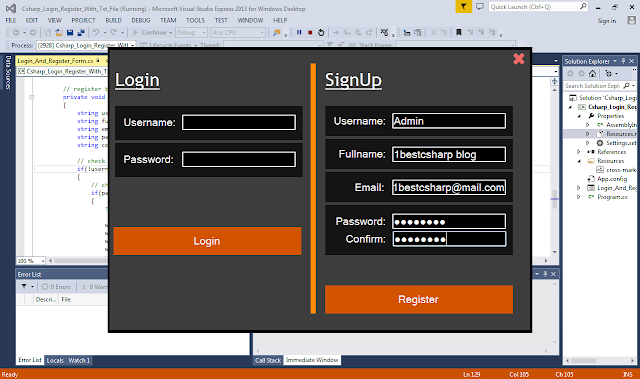
How to Create Login and Register Form in C# with Text File


in this c# form design tutorial we will see how to design a login and register form with a text file in one form using csharp programming language .

tools:
- c# programming language.
- microsoft visual studio express 2013.
- text file.
- pixabay.com ( images).

Watch This Full Demo


▶ Download All C# Projects Source Code

- The Project Source Code


using System;
using System.Collections;
using System.Collections.Generic;
using System.ComponentModel;
using System.Data;
using System.Drawing;
using System.IO;
using System.Linq;
using System.Text;
using System.Threading.Tasks;
using System.Windows.Forms;

namespace Csharp_Login_Register_With_Txt_File
{
    public partial class Login_And_Register_Form : Form
    {
        public Login_And_Register_Form()
        {
            InitializeComponent();
        }

        string filepath = @"C:\Users\1BestCsharp\Desktop\files\users.txt";
        // arraylist of usernames
        ArrayList allusernames = new ArrayList();
        // dictionary of usernames and passwords
        Dictionary<string, string> usernameANDpassword = new Dictionary<string, string>();


        // create a function to get all the usernames and passwords
        public void getUsers()
        {
            string[] lines = File.ReadAllLines(filepath);
            string[] values;
            string un = "";
            string ps = "";

            for(int i = 0; i < lines.Length; i++)
            {
                values = lines[i].ToString().Split(':');

                if(values[0].Trim().Equals("Username"))
                {
                    un = values[1];
                    // add username to arraylist
                    allusernames.Add(un);
                }
                else if (values[0].Trim().Equals("Password"))
                {
                    ps = values[1];
                }
                if (un != "" && ps != "")
                {
                    // add usernames and passwords to dictionary
                    usernameANDpassword.Add(un, ps);

                    // clear username and password
                    un = "";
                    ps = "";
                }

            }

        }


        // close the form
        private void pictureBoxClose_Click(object sender, EventArgs e)
        {
            Environment.Exit(Environment.ExitCode);
        }

        private void Login_And_Register_Form_Load(object sender, EventArgs e)
        {
            // display the close icon
            pictureBoxClose.Image = Properties.Resources.cross_mark;

            getUsers();
        }

        // login button
        private void buttonLogin_Click(object sender, EventArgs e)
        {
            string username = textBoxUsername.Text;
            string password = textBoxPassword.Text;
            bool userExist = false;

            if(username.Trim().Equals("") || password.Trim().Equals(""))
            {
                MessageBox.Show("You Need To Enter The Username And Password","Empty Fields",MessageBoxButtons.OK, MessageBoxIcon.Stop);
            }
            else
            {
                foreach(var uname in usernameANDpassword)
                {
                    // check if the username exist
                    if(uname.Key.ToString().Trim().Equals(username))
                    {
                        // check if the password exist
                        if(uname.Value.ToString().Trim().Equals(password))
                        {
                            userExist = true;
                            break;
                        }
                    }
                }
                if(userExist)
                {
                    MessageBox.Show("This User Exists", "Login", MessageBoxButtons.OK, MessageBoxIcon.Information);
                }
                else
                {
                    MessageBox.Show("This User Doesn't Exists", "Login", MessageBoxButtons.OK, MessageBoxIcon.Information);
                }
            }
        }

        // register button
        private void buttonRegister_Click(object sender, EventArgs e)
        {
            string username = textBox_RG_Username.Text;
            string fullname = textBox_RG_Fullname.Text;
            string email = textBox_RG_Email.Text;
            string password = textBox_RG_Password.Text;
            string confirmpass = textBox_RG_ConfirmPass.Text;

            // check if the textbox are not empty
            if(!username.Trim().Equals("") && !fullname.Trim().Equals("") && !email.Trim().Equals("") && !password.Trim().Equals(""))
            {
                // check if the password confiramtion are correct
                if(password.Equals(confirmpass))
                {
                    TextWriter writer = new StreamWriter(filepath, true);

                    writer.Write("Username: " + username);
                    writer.WriteLine("");//new line
                    writer.Write("Fullname: " + fullname);
                    writer.WriteLine("");//new line
                    writer.Write("Email: " + email);
                    writer.WriteLine("");//new line
                    writer.Write("Password: " + password);
                    writer.WriteLine("");//new line
                    writer.Write("----------");
                    writer.WriteLine("");//new line

                    writer.Close();
                    MessageBox.Show("Account Created Successfully", "Register", MessageBoxButtons.OK, MessageBoxIcon.Information);
                    usernameANDpassword.Add(username, password);
                }
                else
                {
                    MessageBox.Show("Confirmation Password Error", "Error", MessageBoxButtons.OK, MessageBoxIcon.Warning);
                }
            }
            else
            {
                MessageBox.Show("One Ore More Fileds Are Empty", "Error", MessageBoxButtons.OK, MessageBoxIcon.Warning);
            }


        }
    }
}


VB.Net Create And Write In Text File

How To Create And Write In A TXT File Using Visual Basic.Net

create file in vb.net


In this VB.Net Tutorial we will see How To Create A Text File From A Specific Path And Write Into It Text From A TextBox In Visual Basic.Net Programming Language And Visual Studio IDE .


Project Source Code:

Imports System.IO

Public Class CreatFileAndWrite


    Private Sub Btn_CreateAndWrite_Click(sender As Object, e As EventArgs) Handles Btn_CreateAndWrite.Click

        Dim filePath As String
        filePath = "C:\\Users\\omar\\Desktop\\haha\\folder1\\myTextFile.txt"

        If File.Exists(filePath) Then

            MessageBox.Show("File Already Exists")

        Else

            File.Create(filePath).Dispose()
            MessageBox.Show("File Created")

            Dim sw As StreamWriter
            sw = New StreamWriter(filePath)
            sw.WriteLine(RichTextBox1.Text)
            sw.Close()

        End If

    End Sub
End Class
                                       

////// OUTPUT : 

write in text file using vb.net


Java Create And Write In Text File

How To Create And Write In A Txt File Using Java NetBeans

create file in java


In this Java Tutorial we will see How To Create A Text File In A Specific Path And Write Into It Using Java NetBeans .


Project Source Code:

private void jButton_CreateWriteActionPerformed(java.awt.event.ActionEvent evt) {                                                    
       
        File file = new File("C:\\Users\\omar\\Desktop\\haha\\folder1\\myTextFile.txt");
        
        if(!file.exists())
        {
            try {
                file.createNewFile();
                FileWriter fw = new FileWriter(file.getAbsolutePath());
                BufferedWriter bw = new BufferedWriter(fw);
                bw.write("My Text Here");
                
                bw.close();
                fw.close();

            } catch (IOException ex) {
                Logger.getLogger(CreateFileAndWrite.class.getName()).log(Level.SEVERE, null, ex);
            }
        }else{
            System.out.println("File Already Exist");
        }
        
    }        


C# Create And Write In Text File

How To Create And Write In A TXT File Using C#

create file in c#


In this C# Tutorial we will see How To Create A Text File From A Specific Path And Write Into It Text From A TextBox In CSharp Programming Language And Visual Studio IDE .


Project Source Code:

using System;
using System.Collections.Generic;
using System.ComponentModel;
using System.Data;
using System.Drawing;
using System.IO;
using System.Linq;
using System.Text;
using System.Threading.Tasks;
using System.Windows.Forms;

namespace WindowsFormsApplication1
{
    public partial class CreateFileAndWrite : Form
    {
        public CreateFileAndWrite()
        {
            InitializeComponent();
        }

        private void button_CreateAndWrite_Click(object sender, EventArgs e)
        {

            string path = "C:\\Users\\Desktop\\haha\\folder1\\myTextFile.txt";

            if (!File.Exists(path))
            {
                File.Create(path).Dispose();
                MessageBox.Show("File Cteated");

                StreamWriter sw = new StreamWriter(path);
                sw.WriteLine(textBox1.Text);

                sw.Close();
            }
            else
            {
                MessageBox.Show("File Already Exists");
            }

        }

    }
}
                                       

////// OUTPUT : 

write in text file using c#


Java Import And Export Text File To JTable

How To Get And Set Jtable Data To Txt File Using Java NetBeans

Export And Import Text File To JTable Using Java


In this Java Tutorial we will see How To Import Text From Text File And Set It Into JTable Rows & Export JTable Rows Data To A Txt File Using FileWriter  +  BufferedWriter  + FileReader In Java NetBeans .


Project Source Code:


// button to export data to text file
private void jButtonExportActionPerformed(java.awt.event.ActionEvent evt) {                                              
        
        String filePath = "C:\\Users\\omar\\Desktop\\myfolder\\txtfile.txt";
        File file = new File(filePath);
        try {
            FileWriter fw = new FileWriter(file);
            BufferedWriter bw = new BufferedWriter(fw);
            
            for(int i = 0; i < jTableExport.getRowCount(); i++){//rows
                for(int j = 0; j < jTableExport.getColumnCount(); j++){//columns
                    bw.write(jTableExport.getValueAt(i, j).toString()+" ");
                }
                bw.newLine();
            }
            
            bw.close();
            fw.close();
            
        } catch (IOException ex) {
            Logger.getLogger(JTable_import_and_export_to_text_file.class.getName()).log(Level.SEVERE, null, ex);
        }
        
    }                                             


// button to import data from text file
    private void jButtonImportActionPerformed(java.awt.event.ActionEvent evt) {                                              
      
        String filePath = "C:\\Users\\omar\\Desktop\\myfolder\\txtfile.txt";
        File file = new File(filePath);
        
        try {
            FileReader fr = new FileReader(file);
            BufferedReader br = new BufferedReader(fr);
            
            DefaultTableModel model = (DefaultTableModel)jTableImport.getModel();
            Object[] lines = br.lines().toArray();
            
            for(int i = 0; i < lines.length; i++){
                String[] row = lines[i].toString().split(" ");
                model.addRow(row);
            }
            
        } catch (FileNotFoundException ex) {
            Logger.getLogger(JTable_import_and_export_to_text_file.class.getName()).log(Level.SEVERE, null, ex);
        }
        
    } 


OutPut:

Set And Get Jtable Data To Txt File In Java