Affichage des articles dont le libellé est tkinter treeview. Afficher tous les articles

Python Tkinter Data Table Pagination

How to Create a Paginated Data Table in Python Tkinter

How to Create a Paginated Data Table in Python Tkinter


In this Python Tutorial we will see How to Create a Table in Python Tkinter with advanced pagination, navigation controls, and professional styling.


What We're Building ?

We're creating a sophisticated data table with:

- Dynamic pagination with customizable page sizes (5, 10, 15, 20 rows).
- Smart navigation controls with first/last/previous/next buttons.
- Page number buttons with intelligent ellipsis handling.
- Jump-to-page functionality with input validation.

What We Are Gonna Use In This Project:

- Python Programming Language.
- Tkinter (GUI).
- VS Editor.


Project Source Code:


import tkinter as tk
from tkinter import ttk
import random
from typing import List, Tuple
import math

class PaginatedTable(tk.Tk):

def __init__(self):

super().__init__()

# Define color scheme for the application
self.primary_color = "#4F46e5"
self.hover_color = "#c7d2fe"
self.bg_color = "#f9fafb"
self.text_color = "#111827"

# Initialize pagination-related variables
# Start with first page
self.current_page = 1
# Number of rows to show per page
self.records_per_page = 5
# List to store all table data
self.all_data: List[Tuple] = []

self.setup_window()
self.create_styles()
self.initialize_components()
self.load_simple_data()
self.update_table()
self.center_window()


def setup_window(self):
self.title("Paginated Table")
self.geometry("900x620")
self.configure(bg=self.bg_color)
def center_window(self):
# Update window's actual dimensions
self.update_idletasks()
# Get window dimensions
width = self.winfo_width()
height = self.winfo_height()
# Calculate position to center window
x = (self.winfo_screenwidth() // 2) - (width // 2)
y = ((self.winfo_screenheight()-20) // 2) - (height // 2)
print(self.winfo_screenheight())
print(height)
# Set window position
self.geometry(f'{width}x{height}+{x}+{y}')
def initialize_components(self):
# Create main container frame
self.main_frame = tk.Frame(self, bg=self.bg_color, padx=20, pady=20)
self.main_frame.pack(fill=tk.BOTH, expand=True)

# Create white container for table
self.table_container = tk.Frame(self.main_frame, bg="white",
bd=1, relief="solid")
self.table_container.pack(fill=tk.BOTH, expand=True)

# Define table columns
columns = ("ID", "Name", "Email", "Status")

# Create table widget
self.table = ttk.Treeview(self.table_container, columns = columns,
show="headings", style="Modern.Treeview", selectmode="browse")

# Configure each column in table
for col in columns:
self.table.heading(col, text = col, anchor = "w")
self.table.column(col, anchor="w", width=100)
# Add vertical scrollbar
scrollbar = ttk.Scrollbar(self.table_container, orien="vertical",
command=self.table.yview)
self.table.configure(yscrollcommand=scrollbar.set)

# Arrange table and scrollbar
self.table.pack(side="left", fill="both", expand="True")
scrollbar.pack(side="right", fill="y")

# Create frame for pagination controls
self.pagination_frame = tk.Frame(self.main_frame, bg="white", height=60)
self.pagination_frame.pack(fill="x", pady=(20, 0))

# Create left section with page size selector
left_frame = tk.Frame(self.pagination_frame, bg="white")
left_frame.pack(side="left", padx=10)

# Create dropdown for selecting number of rows per page
self.page_size_var = tk.StringVar(value = "5 rows")
page_sizes = ["5 rows", "10 rows", "15 rows", "20 rows"]
self.page_size_combo = ttk.Combobox(left_frame, values = page_sizes,
textvariable = self.page_size_var,
style="Modern.TCombobox", width=10)
self.page_size_combo.pack(side="left", padx=5)
self.page_size_combo.bind('<<ComboboxSelected>>', self.on_page_size_change)

# Create label showing total records
self.total_records_label = tk.Label(left_frame, text="Total: 0 records",
bg="white", fg=self.text_color, font=("Arial", 11))
self.total_records_label.pack(side="left", padx=10)

# Create center frame for page navigation
self.center_frame = tk.Frame(self.pagination_frame, bg="white")
self.center_frame.pack(side="left", expand="True")

# Create right section for page jump
right_frame = tk.Frame(self.pagination_frame, bg = "white")
right_frame.pack(side="right", padx=10)

# Add "Go to page" label
tk.Label(right_frame, text="Go to page: ", bg="white", fg=self.text_color,
font=("Arial", 11)).pack(side="left")
# Create entry field for jumping to specific page
self.page_jump = tk.Entry(right_frame, width=5, font=("Arial", 11))
self.page_jump.pack(side="left", padx=5)
self.page_jump.bind("<Return>", self.on_page_jump)


def create_styles(self):
# Create style object for themed widgets
style = ttk.Style()
style.theme_use("clam")

# Configure style for table (Treeview)
style.configure("Modern.Treeview", background="white",
foreground=self.text_color, rowheight=50, fieldbackground = "white",
borderwidth = 0, font = ("Arial", 11))


# Configure style for table header (Treeview)
style.configure("Modern.Treeview.Heading", background="black",
foreground="white", borderwidth = 0, font = ("Inter", 11, 'bold'))

# Configure table selection colors
style.map("Modern.Treeview", background = [('selected', self.hover_color)],
foreground = [('selected', "red")])

# Configure style for dropdown (Combobox)
style.configure("Modern.TCombobox", background="white",
foreground=self.text_color, arrowcolor = "red")


def load_simple_data(self):
# Define possible status values
statuses = ["Active", "Pending", "Completed", "Inactive"]
self.all_data = []

# Generate 1000 sample records
for i in range(1, 1000):
self.all_data.append(
(f"#{i:03d}",
f"User{i}",
f"user{i}@example.com",
random.choice(statuses))
)
# Calculate total pages needed
self.total_pages = math.ceil(len(self.all_data) / self.records_per_page)


def create_pagination_button(self, parent, text, command, is_active = False):
# Create a button for pagination navigation
btn = tk.Button(parent, text = text, font=("Arial", 11),
bg = self.primary_color if is_active else "white",
fg = "white" if is_active else self.text_color,
bd = 1 if not is_active else 0,
relief = "solid" if not is_active else "flat",
width=3, height = 1, command=command)
btn.pack(side="left", padx = 2)
return btn


def update_table(self):
# Remove all existing rows
for item in self.table.get_children():
self.table.delete(item)
# Calculate which records to show
start = (self.current_page - 1) * self.records_per_page
end = start + self.records_per_page

# Add records for current page
for row in self.all_data[start: end]:
self.table.insert("", "end", values = row)

# Update pagination buttons
self.update_pagination()


def go_to_page(self, page):
# Change page if requested page is valid
if 1 <= page <= self.total_pages:
self.current_page = page
self.update_table()

def on_page_size_change(self, event):
# Get selected number of rows per page
size = int(self.page_size_var.get().split()[0])
# Update pagination settings
self.records_per_page = size
self.total_pages = math.ceil(len(self.all_data) / self.records_per_page)
self.current_page = 1
# Refresh table display
self.update_table()

def on_page_jump(self, event):
try:
# Try to convert entered page number to integer
page = int(self.page_jump.get())

# Go to page if number is valid
if 1 <= page <= self.total_pages:
self.go_to_page(page)

# Clear the entry field
self.page_jump.delete(0, tk.END)
except ValueError:
pass

def update_pagination(self):
# Clear existing pagination buttons
for widget in self.center_frame.winfo_children():
widget.destroy()

# Add first page button
self.create_pagination_button(self.center_frame, "⟪",
lambda: self.go_to_page(1), False)
# Add previous page button
self.create_pagination_button(self.center_frame, "←",
lambda: self.go_to_page(self.current_page - 1), False)

# Calculate which page numbers to show
start = max(1, self.current_page - 2)
end = min(self.total_pages, start + 4)

# Add ellipsis if needed at start
if start > 1:
tk.Label(self.center_frame, text = "...", bg="white").pack(side="left",
padx = 5)

# Add page number buttons
for i in range(start, end + 1):
self.create_pagination_button(self.center_frame, str(i),
lambda x = i: self.go_to_page(x),
i == self.current_page)

# Add ellipsis if needed at end
if end < self.total_pages:
tk.Label(self.center_frame, text = "...", bg="white").pack(side="left",
padx = 5)

# Add next page button
self.create_pagination_button(self.center_frame, "→",
lambda: self.go_to_page(self.current_page + 1), False)

# Add last page button
self.create_pagination_button(self.center_frame, "⟫",
lambda: self.go_to_page(self.total_pages), False)

# Update total records counter
self.total_records_label.config(text = f"Total: {len(self.all_data)} records")


if __name__ == "__main__":
app = PaginatedTable()
app.mainloop()


The Final Result:

Python Tkinter Data Table Pagination


Python & MySQL - How to Populate TreeView from MySQL Database in Python Tkinter

How to Load Data from MySQL Database into Tkinter TreeView using Python


How To Bind TreeView From MySQL DataBase In Python Tkinter


In this python Tutorial we will learn How To retrieve data from a MySQL database and display it in a Tkinter TreeView using Python.
The TreeView widget provides an organized and hierarchical way to present data in a tabular format, making it ideal for displaying database records.


Project Source Code:

import tkinter as tk
from tkinter import *
from tkinter import ttk
import mysql.connector

connection = mysql.connector.connect(host='localhost', user='root', port='3306',
password='', database='test_py')
c = connection.cursor()

root = Tk()

frame = tk.Frame(root, padx=40,pady=40, bg='grey')


c.execute("SELECT firstname FROM `users_2`")
options = c.fetchall()
selected = StringVar(frame)
selected.set(options[0])

combobox = ttk.Combobox(frame, textvariable=selected, values=options,
font=('verdana',14))

combobox.pack()
frame.pack()

root.mainloop()


Setting up the TreeView:
We will create a frame within the main window to hold the TreeView widget. The TreeView will have five columns representing the different fields of our database table: ID, First Name, Last Name, Email, and Age. We will configure the column widths and headings accordingly.

Retrieving and Displaying Data:
To populate the TreeView, we will define a function named displayData(). Inside this function, we will execute a SQL query to fetch the records from the MySQL database table. We will iterate over the retrieved data and insert each record into the TreeView using the insert() method.

Running the Application:
Finally, we will call the displayData() function to load the data into the TreeView. We will then start the main event loop using the mainloop() method to display the GUI and interact with the user.

OutPut:

How To Populate TreeView From MySQL DataBase In Python Tkinter


Python Tkinter : Search And Filter Data In Treeview With Select Options Using Python Tkinter And MySQL

Python Tkinter How To Filter Data In Html Table Using Select Options In Python Tkinter And MySQL Database

Search And Filter Data In Treeview With Select Options Using Python Tkinter And MySQL

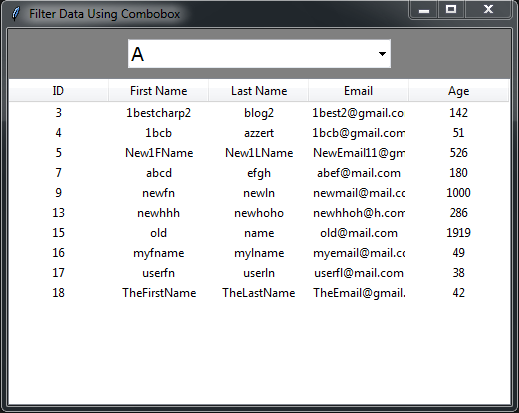
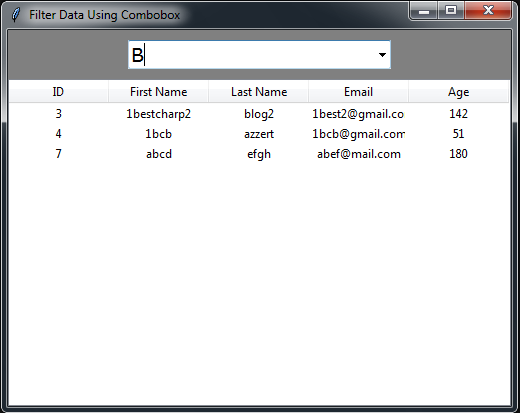
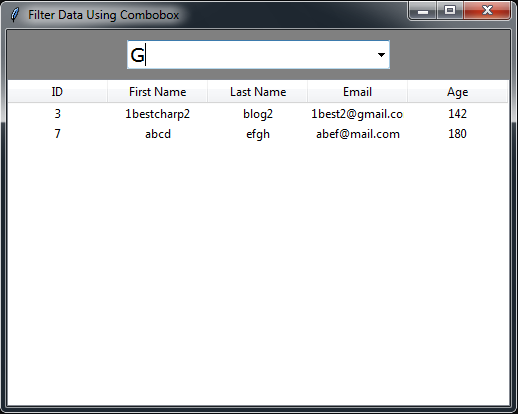
in this Python Tkinter tutorial we will see how to search data from mysql database table in python and display the results in a tkinter treeview using a combobox (select option).

Source Code:


import tkinter as tk
from tkinter import *
from tkinter import ttk
import mysql.connector

root = Tk()
root.title("Search, Filter And Display Data")

connection = mysql.connector.connect(host='localhost', user='root', password='',
port='3306', database='test_py')
c = connection.cursor()

bkg = "grey"

frame = tk.Frame(root, bg=bkg)

options = ['A','B','C','D','E','F','G','H']
selected = StringVar(frame)
selected.set(options[0])

combobox = ttk.Combobox(frame, textvariable=selected, values=options,
font=('verdana',14))

trv = ttk.Treeview(frame, columns=(1,2,3,4,5), height=15, show="headings")

trv.column(1, anchor=CENTER, stretch=NO, width=100)
trv.column(2, anchor=CENTER, stretch=NO, width=100)
trv.column(3, anchor=CENTER, stretch=NO, width=100)
trv.column(4, anchor=CENTER, stretch=NO, width=100)
trv.column(5, anchor=CENTER, stretch=NO, width=100)

trv.heading(1, text="ID")
trv.heading(2, text="First Name")
trv.heading(3, text="Last Name")
trv.heading(4, text="Email")
trv.heading(5, text="Age")

def displayData():
c.execute('SELECT * FROM `users_2`')
users = c.fetchall()

for user in users:
trv.insert('','end', value=(user[0], user[1], user[2], user[3], user[4]))

def search(eventObject):
# clear treeview
for item in trv.get_children():
trv.delete(item)

val = combobox.get()
c.execute("""SELECT * FROM `users_2` WHERE `firstname` LIKE %s or
`lastname` like %s""",("%"+val+"%","%"+val+"%"))
users = c.fetchall()

for row in users:
trv.insert('',END, values=row)

combobox.bind("<<ComboboxSelected>>", search)

combobox.grid(row=0, column=0)
trv.grid(row=1, column=0)

frame.grid(row=0, column=0)

displayData()

root.mainloop()


OUTPUT:

Python Tkinter Search And Filter Data In Treeview With Combobox

Python Tkinter Search And Filter Data In Treeview With Combobox

Python Tkinter Search And Filter Data In Treeview With Combobox

Python Tkinter Search And Filter Data In Treeview With Combobox


Python - Move Tkinter Treeview Row Up And Down

How To Move Tkinter Treeview Selected Rows Up N Down In Python

Move Tkinter Treeview Row Up And Down In Python


In this Python Tkinter Tutorial we will see How To Get Treeview Selected Row And Move This Row Up & Down By Changing The position Using The move Function On  Two Buttons Click Event  In  Python Programming language And Tkinter GUI .

Source Code:

import tkinter as tk
from tkinter import *
from tkinter import ttk


root = Tk()
root.title("Move Row UP and DOWN")

frame_container = tk.Frame(root, padx=10, pady=10, bg='#badc58')
frame_fields = tk.Frame(frame_container, bg='#badc58')

# create treeview
trv = ttk.Treeview(frame_container, columns=(1,2,3,4), show='headings')

trv.column(1, anchor='center', width=100)
trv.column(2, anchor='center', width=100)
trv.column(3, anchor='center', width=100)
trv.column(4, anchor='center', width=100)

trv.heading(1, text='ID')
trv.heading(2, text='Name')
trv.heading(3, text='Quantity')
trv.heading(4, text='Price')

# add items to the treeview
trv.insert("",'end', iid=1, values=(1,"Product 1",100, 10))
trv.insert("",'end', iid=2, values=(2,"Product 2",200, 20))
trv.insert("",'end', iid=3, values=(3,"Product 3",300, 30))
trv.insert("",'end', iid=4, values=(4,"Product 4",400, 400))
trv.insert("",'end', iid=5, values=(5,"Product 5",500, 50))
trv.insert("",'end', iid=6, values=(6,"Product 6",600, 60))

# create a function to move the selected row up
def moveUp():
leaves = trv.selection()
for i in leaves:
trv.move(i, trv.parent(i), trv.index(i)-1)

# create a function to move the selected row down
def moveDown():
leaves = trv.selection()
for i in reversed(leaves):
trv.move(i, trv.parent(i), trv.index(i)+1)


btn_up = tk.Button(frame_fields, text='UP', command=moveUp)
btn_down = tk.Button(frame_fields, text='DOWN', command=moveDown)

btn_up.grid(row=0, column=0, padx=10, pady=10, sticky='e')
btn_down.grid(row=0, column=1)


trv.pack()
frame_container.pack()
frame_fields.pack()

root.mainloop()


OUTPUT:


Python Move Tkinter Treeview Row Up And Down

Python Move Selected Tkinter Treeview Row Up

Python Move Selected Tkinter Treeview Row Down


Python Tkinter Multiplication Table

How To Create Multiplcation Table In Tkinter Using Python

Python Tkinter Multiplication Table

in this Python Tkinter tutorial we will see how to make a multiplication table using treeview.

Source Code:

import tkinter as tk
from tkinter import *
from tkinter import ttk


root = Tk()
root.title("Multiplication Table")

frame_container = tk.Frame(root, padx=10, pady=10, bg='#badc58')

# create treeview
trv = ttk.Treeview(frame_container, columns=(1,2,3,4,5,6,7,8,9), show='headings')


# function to add columns and rows to the Treeview (Multiplication Table)
def createMultiplicationTable():
# add columns to the treeview
for i in range(0,10):
trv.column(i, anchor='center', width=100)
trv.heading(i, text='[ ' + str(i) + ' ]')
# add rows to the Treeview
for j in range(1,11):
numbers = []
for c in range(1,11):
numbers.append(str(j) + " x " + str(c) + " = " + str(j*c))
if c == 10:
trv.insert("",'end', iid=j, values=numbers)


createMultiplicationTable()

trv.pack()
frame_container.pack()

root.mainloop()

OUTPUT:

Create Multiplication Table In Python Tkinter


Python Tkinter Get Min Value in Treeview Column

How to get the Minimum Value in a Tkinter Treeview Column Using Python

Python Tkinter Get Min Value in Treeview Column


import tkinter as tk
from tkinter import *
from tkinter import ttk


root = Tk()
root.title("MAX-MIN-SUM-AVG")

frame_container = tk.Frame(root, padx=10, pady=10, bg='#badc58')
frame_fields = tk.Frame(frame_container, bg='#badc58')

# create treeview
trv = ttk.Treeview(frame_container, columns=(1,2,3,4), show='headings')

trv.column(1, anchor='center', width=100)
trv.column(2, anchor='center', width=100)
trv.column(3, anchor='center', width=100)
trv.column(4, anchor='center', width=100)

trv.heading(1, text='ID')
trv.heading(2, text='Name')
trv.heading(3, text='Quantity')
trv.heading(4, text='Price')

# add items to the treeview
trv.insert("",'end', iid=1, values=(1,"Product 1",100, 10))
trv.insert("",'end', iid=2, values=(2,"Product 2",200, 20))
trv.insert("",'end', iid=3, values=(3,"Product 3",300, 30))
trv.insert("",'end', iid=4, values=(4,"Product 4",400, 400))
trv.insert("",'end', iid=5, values=(5,"Product 5",500, 50))
trv.insert("",'end', iid=6, values=(6,"Product 6",600, 60))


# minimum value
min_lbl = tk.Label(frame_fields, text='Min:', font=('Verdana',14), bg='#badc58')
min_entry = tk.Entry(frame_fields, font=('Verdana',14))

min_lbl.grid(row=0, column=0, padx=10, pady=10, sticky='e')
min_entry.grid(row=0, column=1)

# function to display the minimum value
def getMin():
val = trv.item("1")["values"][3] # get the first value
for row in trv.get_children():
#print(trv.item(row)["values"][3])# print price
if val > trv.item(row)["values"][3]:
val = trv.item(row)["values"][3]
min_entry.insert(0,val)


getMin()

trv.pack()
frame_container.pack()
frame_fields.pack()

root.mainloop()


OUTPUT:

Get Min Value in Tkinter Treeview Column In Python