How To Update HTML Table Selected Row Using JavaScript
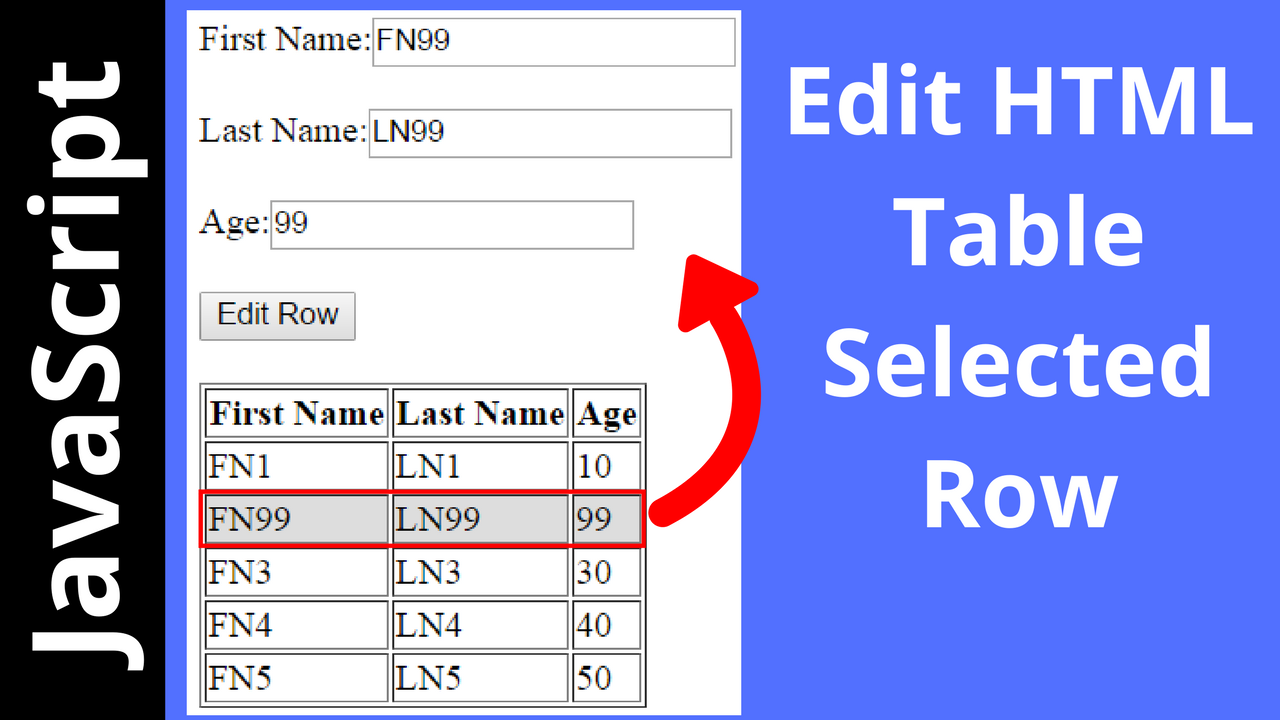
In This Javascript Tutorial we will See Update HTML Table Selected Row From Input Text
1 - get selected row and display data into input text.
2 - edit the selected row with the new values .
In JS And Netbeans Editor .
Project Source Code:
<!DOCTYPE html>
<html>
<head>
<title>Edit HTML Table Selected Row</title>
<meta charset="windows-1252">
<meta name="viewport" content="width=device-width, initial-scale=1.0">
<style>
table tr:not(:first-child){
cursor: pointer;transition: all .25s ease-in-out;
}
table tr:not(:first-child):hover{background-color: #ddd;}
</style>
</head>
<body>
First Name:<input type="text" name="fname" id="fname"><br><br>
Last Name:<input type="text" name="lname" id="lname"><br><br>
Age:<input type="text" name="age" id="age"><br><br>
<button onclick="editRow();">Edit Row</button><br><br>
<table id="table" border="1">
<tr>
<th>First Name</th>
<th>Last Name</th>
<th>Age</th>
</tr>
<tr>
<td>FN1</td>
<td>LN1</td>
<td>10</td>
</tr>
<tr style="background-color: #ddd">
<td>FN2</td>
<td>LN2</td>
<td>20</td>
</tr>
<tr>
<td>FN3</td>
<td>LN3</td>
<td>30</td>
</tr>
<tr>
<td>FN4</td>
<td>LN4</td>
<td>40</td>
</tr>
<tr>
<td>FN5</td>
<td>LN5</td>
<td>50</td>
</tr>
</table>
<script>
// get selected row
// display selected row data in text input
var table = document.getElementById("table"),rIndex;
for(var i = 1; i < table.rows.length; i++)
{
table.rows[i].onclick = function()
{
rIndex = this.rowIndex;
console.log(rIndex);
document.getElementById("fname").value = this.cells[0].innerHTML;
document.getElementById("lname").value = this.cells[1].innerHTML;
document.getElementById("age").value = this.cells[2].innerHTML;
};
}
// edit the row
function editRow()
{
table.rows[rIndex].cells[0].innerHTML = document.getElementById("fname").value;
table.rows[rIndex].cells[1].innerHTML = document.getElementById("lname").value;
table.rows[rIndex].cells[2].innerHTML = document.getElementById("age").value;
}
</script>
</body>
</html>
<html>
<head>
<title>Edit HTML Table Selected Row</title>
<meta charset="windows-1252">
<meta name="viewport" content="width=device-width, initial-scale=1.0">
<style>
table tr:not(:first-child){
cursor: pointer;transition: all .25s ease-in-out;
}
table tr:not(:first-child):hover{background-color: #ddd;}
</style>
</head>
<body>
First Name:<input type="text" name="fname" id="fname"><br><br>
Last Name:<input type="text" name="lname" id="lname"><br><br>
Age:<input type="text" name="age" id="age"><br><br>
<button onclick="editRow();">Edit Row</button><br><br>
<table id="table" border="1">
<tr>
<th>First Name</th>
<th>Last Name</th>
<th>Age</th>
</tr>
<tr>
<td>FN1</td>
<td>LN1</td>
<td>10</td>
</tr>
<tr style="background-color: #ddd">
<td>FN2</td>
<td>LN2</td>
<td>20</td>
</tr>
<tr>
<td>FN3</td>
<td>LN3</td>
<td>30</td>
</tr>
<tr>
<td>FN4</td>
<td>LN4</td>
<td>40</td>
</tr>
<tr>
<td>FN5</td>
<td>LN5</td>
<td>50</td>
</tr>
</table>
<script>
// get selected row
// display selected row data in text input
var table = document.getElementById("table"),rIndex;
for(var i = 1; i < table.rows.length; i++)
{
table.rows[i].onclick = function()
{
rIndex = this.rowIndex;
console.log(rIndex);
document.getElementById("fname").value = this.cells[0].innerHTML;
document.getElementById("lname").value = this.cells[1].innerHTML;
document.getElementById("age").value = this.cells[2].innerHTML;
};
}
// edit the row
function editRow()
{
table.rows[rIndex].cells[0].innerHTML = document.getElementById("fname").value;
table.rows[rIndex].cells[1].innerHTML = document.getElementById("lname").value;
table.rows[rIndex].cells[2].innerHTML = document.getElementById("age").value;
}
</script>
</body>
</html>
OUTPUT:

This code doesn't store the text update, just updates it till you refresh the page.
RépondreSupprimerWhat is the purpose of comma rIndex in this line document.getElementById("tasks_table"),rIndex;
RépondreSupprimerthe comma separate the variables
RépondreSupprimerexample: var v1, v2;
The simple, plain old school🎒📚, but the best👍💯 one!
RépondreSupprimerwhats the code if i have 2 radio buttons instead of a cell
RépondreSupprimer